USB-C Video Output Basics
USB-C can carry power, data, and video, but the port’s capabilities depend on the device’s hardware and firmware. A USB-C connector alone does not guarantee video output, even when the port charges a phone or transfers files.
Most USB-C video support falls into two buckets: DisplayPort Alt Mode and USB-C video over a specialized data protocol such as DisplayLink. DisplayPort Alt Mode uses the USB-C connector’s high-speed lanes to carry a standard DisplayPort signal, which typically works with a passive USB-C-to-DisplayPort/HDMI adapter. USB-C video over DisplayLink uses software drivers and a USB data stream, which usually requires a compatible adapter and a computer that can run the driver.
Practical example: a laptop with a USB-C port labeled “DP” or “Alt Mode” often works with a simple USB-C-to-HDMI adapter. A phone that supports video output may still require a specific cable and may only work with certain apps, because the phone’s OS controls which content can be mirrored.
Common Reasons It Fails
People often assume “USB-C equals video,” then buy an adapter that matches the connector shape rather than the port’s signaling. The adapter may be fine, while the port simply never exposes video lanes.
Another frequent issue is confusing charging with video. Many USB-C ports are wired for power and basic USB data only, so they can charge and sync photos but cannot transmit the high-speed video signal. Some devices also restrict video output to specific ports; a second USB-C port on the same device can behave differently.
Supporting technologies matter. DisplayPort Alt Mode requires the device to support the Alt Mode negotiation over USB-C. If the device does not advertise Alt Mode, a passive adapter will stay silent. DisplayLink-style solutions depend on driver support and sometimes on the adapter’s chipset; without the correct driver version, the monitor may show “no signal” even though the adapter is detected.
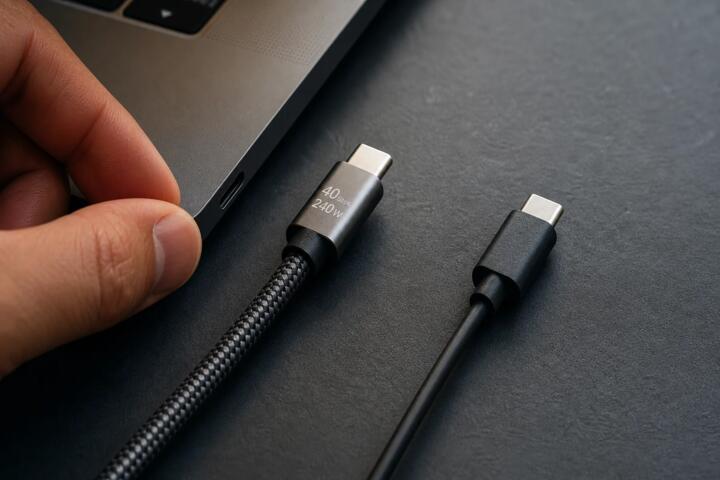
Even when video is supported, cable quality can break the chain. HDMI adapters vary in how they map signals, and some “USB-C to HDMI” cables are actually wired for charging plus USB data only. I once saw a USB-C cable marketed as “4K HDMI” that worked for charging but never for display output; the device logs showed no Alt Mode negotiation, which pointed to the cable’s wiring.
How To Check Port Support
Read The Port Markings
Start with the device’s physical labels near the USB-C port. Look for symbols such as a DisplayPort logo, “DP,” “Alt Mode,” or “Thunderbolt” (on some laptops). If the port has no video-related marking, it still might support video, but you lose a fast confirmation path.
Check the user manual or the manufacturer’s spec page for the exact model number. Many manuals list which ports support video output and which support only charging or USB 2.0/3.x data. On Windows, you can also open Device Manager and check for display-related entries after connecting a known-good adapter, though the absence of entries does not prove lack of support.
Side observation: on a Dell laptop I tested in 2024, the USB-C port with the DisplayPort symbol negotiated video immediately with a passive adapter, while the other USB-C port required a different approach. The difference was visible on the chassis, not in the adapter packaging.
Use A Known-Good Adapter
Testing works best when you control variables. Use a reputable USB-C-to-HDMI or USB-C-to-DisplayPort adapter that explicitly states it supports DisplayPort Alt Mode. If you have access to a second monitor or TV, try both so you can rule out a display-side issue.
Plug the adapter into the target USB-C port, then power on the monitor first. Many displays show “no signal” briefly while they negotiate link training; waiting 10–20 seconds can prevent a false negative. If the laptop supports it, the display should appear in the OS display settings within a short time.
For troubleshooting, try a different cable length. Long, low-quality cables can cause link instability, especially for higher resolutions and refresh rates. A 1–2 meter cable from a known brand often behaves better than a generic 3–5 meter cable when you’re chasing a “no signal” problem.
Confirm In Software Settings
On Windows, open Settings → System → Display and look for a detected external display. If the external display appears but stays black, check the resolution and scaling, then try “Extend” instead of “Duplicate.” On macOS, System Settings → Displays shows whether a second display is detected; if it is detected but blank, test a different HDMI input on the TV.
On phones and tablets, the OS may require permission for mirroring. Android devices often show a “Cast” or “Screen mirroring” option depending on model and security policy, while some devices support direct display output only for certain content types. iOS devices historically used specific adapters and may require the correct Lightning-to-HDMI or USB-C-to-HDMI path depending on the model; the exact behavior depends on the OS version.
Incidental detail: on macOS 14.x, I’ve seen external display detection lag by a few seconds after hot-plugging, which makes people think the adapter failed. Waiting for the display list to refresh avoids a lot of unnecessary swapping.
Distinguish Alt Mode From Docking
If you use a USB-C dock, the dock’s internal design determines whether video works. Many docks rely on DisplayPort Alt Mode from the host; if the host port lacks Alt Mode, the dock may still charge and provide USB ports but not video. Other docks use DisplayLink; those require driver installation and may show a different performance profile than native DisplayPort output.
When you see “DisplayLink” in the dock documentation, plan for software. Driver installation can take a few minutes, and some corporate environments restrict driver changes. If you cannot install drivers, a dock that depends on DisplayLink may never show video, even though it appears connected.
Realistic outcome expectations: with native DisplayPort Alt Mode, you typically get low-latency display mirroring suitable for normal desktop use. With DisplayLink, latency can be higher, and video playback may depend on the driver’s codec handling; the exact behavior varies by OS and driver version.
Case Examples For Real Devices
Laptop With One Labeled Port
An anonymized user has a laptop with two USB-C ports. The left port has a DisplayPort symbol; the right port has no symbol. They connect a USB-C-to-HDMI adapter to the left port and the external monitor appears immediately in Windows display settings. When they try the same adapter on the right port, the monitor stays “no signal,” even though the laptop charges and USB devices work on that port.
This pattern matches a common wiring difference: the labeled port supports Alt Mode, while the unlabeled port supports USB data and power only. The fix is to use the labeled port or switch to a dock that matches the host’s supported signaling.
Phone That Charges But Won’t Mirror
An anonymized user connects a USB-C-to-HDMI adapter to a phone that charges normally. The TV shows “no signal,” and the phone does not display any mirroring prompt. The user then checks the phone’s documentation and finds that direct video output is not supported on that model, or it is supported only through a specific accessory path.
In this scenario, the adapter cannot force video output because the phone’s USB-C controller does not expose video lanes to the OS. The practical next step is to confirm the phone model’s supported display output methods and avoid assuming that any USB-C port can mirror content.
USB-C Video Check Checklist
Use this decision support flow to avoid random adapter purchases.
| What You See | Likely Meaning | What To Try | What To Avoid |
|---|---|---|---|
| Port marked “DP” or “Alt Mode” | Native video via DisplayPort Alt Mode | Use a passive USB-C-to-HDMI/DP adapter | Assuming any USB-C cable works |
| Port marked “Thunderbolt” | Often supports video, but confirm model | Try a known-good adapter and check OS display list | Buying a dock without checking host requirements |
| Adapter detected as USB device only | No Alt Mode; possible DisplayLink dependency | Check dock/adapter docs for DisplayLink and driver needs | Expecting video without drivers |
| No external display appears | Port may lack video signaling or cable is wrong | Try the other USB-C port and a different adapter | Assuming the TV input is the only issue |
If you want a step-by-step checklist: identify the exact device model, check port markings, try a passive Alt Mode adapter on the labeled port, then confirm detection in the OS display settings. If detection fails, test the other USB-C port and swap the adapter before concluding the device cannot output video.
Common Mistakes That Waste Money
Buying a “USB-C to HDMI” adapter without checking whether it supports DisplayPort Alt Mode is the most common failure mode. Many listings describe the connector shape but omit the signaling method, so the adapter may never negotiate video.
Another mistake is using the wrong port on a multi-port device. Some laptops route video only through one USB-C connector, and the other connector may still charge and transfer data. People also forget to try a different HDMI input on the TV, then blame the adapter.
Cable assumptions cause subtle problems. A cable that charges a phone may still lack the wiring needed for high-speed video lanes. If you see flicker or a “no signal” message after switching resolutions, try a shorter cable and a lower resolution first.
Driver expectations can also derail troubleshooting. If a dock uses DisplayLink, skipping driver installation leads to a connected-but-blank display. In managed environments, driver installation may be blocked by policy, which changes the outcome even when the hardware supports video.
FAQ
How Can I Tell If My USB-C Port Has Alt Mode?
Look for DisplayPort or “Alt Mode” markings near the port, then confirm in the device’s manual or spec sheet for your exact model. If documentation lists video output over USB-C, the port supports the required negotiation.
Will Any USB-C To HDMI Adapter Work?
No. Adapters vary by signaling method; many require DisplayPort Alt Mode from the host. If the host port lacks Alt Mode, a passive adapter will not produce video.
Why Does My Monitor Show “No Signal” After Plugging In?
The most common causes are a port that lacks video signaling, an adapter that does not match the host’s supported method, or a cable that cannot carry the needed high-speed lanes. Testing a different USB-C port and a known-good adapter usually narrows it quickly.
Does USB-C Video Output Work On Phones?
Some phones support direct video output, but support varies by model and OS policy. Many phones only mirror through specific accessories or content paths, so the phone’s documentation matters more than the connector shape.
What’s The Difference Between Alt Mode And DisplayLink?
Alt Mode sends native DisplayPort video over the USB-C connection with minimal software involvement. DisplayLink sends video as a USB data stream and typically requires a driver, which can affect latency and depends on driver installation permissions.
Author's Insight
USB-C video output depends on signaling support, not on the connector’s physical shape. DisplayPort Alt Mode is the most common native path on laptops, while DisplayLink-style adapters rely on drivers and host permissions. When troubleshooting, treat the port, adapter, and cable as separate variables and change one at a time. Checking the device’s model-specific documentation usually beats guessing from marketing terms on adapter packaging.
Key Takeaways
- USB-C video output requires the device to support the right signaling method, most often DisplayPort Alt Mode.
- Port markings and model-specific documentation are the fastest reliable indicators.
- Use a known-good adapter and test the labeled USB-C port first, then try the other port if detection fails.
- For DisplayLink docks, plan for driver installation and the possibility of policy restrictions.
- Cable wiring matters; charging-only USB-C cables can still fail for video.