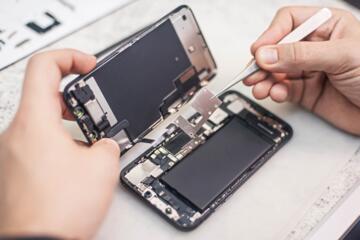
Battery Health And Cycle Count
Battery health describes how much usable capacity remains compared with a new battery, plus whether the phone’s power management has started limiting performance. Cycle count estimates how many full charge-discharge cycles the battery has experienced, though many phones track it indirectly. These two metrics help you separate “normal aging” from problems like a worn cell, a faulty charger, or a battery calibration issue. For example, a phone can show a low capacity percentage while still holding stable day-to-day performance, or it can show a decent capacity while reporting frequent unexpected shutdowns. You’ll get better decisions when you treat health and cycles as clues, then confirm with real behavior such as battery drain and thermal patterns.
Common Misreads And Limits
People often treat any battery app number as a direct measurement of battery wear, even when the app reads only what the operating system exposes. On many Android devices, cycle count may not be available at all, and “health” values can be vendor-specific or derived from charging history rather than measured capacity. On iPhone, the system reports battery health and may show “Peak Performance Capability” and “Maximum Capacity,” but cycle count is not always shown in the same place as capacity. Another frequent mistake involves confusing battery calibration with battery aging. A phone that has been used with irregular charging patterns can report misleading capacity until the system refreshes its estimates after a few charge cycles.
Supporting technologies shape what you can see. The battery management system (BMS) measures voltage, current, temperature, and charge throughput, then estimates state of charge and state of health. Cycle count often comes from accumulated charge throughput divided by an equivalent full cycle, which means partial charges still contribute. Temperature history matters because high heat accelerates degradation, and the BMS may adjust performance to protect the cell. If you rely on a single screenshot from a buyer’s app, you miss the context: the phone’s thermal environment, charging habits, and whether the battery was replaced.
There’s also a practical dependency on firmware. Some iOS versions expose more battery details than others, and some Android builds restrict access to battery statistics. I’ve seen cases where a third-party app showed “cycle count” on one device model but returned blank fields on another with the same Android version. That inconsistency usually reflects what the device’s battery service exports, not the app’s skill.
How To Check On iPhone
Use Battery Health Settings
Open the iPhone Settings app, then go to Battery, then Battery Health & Charging. Look for two fields: Maximum Capacity (a percentage of original capacity) and Peak Performance Capability (which can indicate whether performance management is active). Apple’s published guidance ties Maximum Capacity to battery aging, and Peak Performance Capability to whether the phone has detected conditions that require performance management. If you see a low Maximum Capacity and the phone also throttles under load, the battery is likely near the end of its useful life.
Interpret Cycle Count Carefully
Cycle count on iPhone is often shown as a number of charge cycles, but it may appear in different places depending on iOS version and region. If you can find it, treat it as an estimate of charge throughput cycles rather than a guarantee of battery wear. A battery can degrade faster than cycle count suggests if it spent time at high temperatures. Conversely, a battery can show a moderate cycle count while still reporting reduced capacity if it aged due to heat or long storage at high charge.
Confirm With Real-World Behavior
Use the built-in Battery usage screen to check whether drain is consistent with your usage. If the phone drops from, say, 30% to 10% unusually fast, that pattern can indicate either a calibration issue or a degraded cell. Also watch for thermal behavior: sustained warmth during light tasks can correlate with battery stress. If you recently changed chargers or cables, test with a known-good charger and cable for a few days; a damaged cable can cause charging instability that looks like battery health trouble.
How To Check On Android
Check What Your Device Exposes
Start in Settings for Battery or Battery & charging, then look for Battery health, Battery usage, or Battery information. Many Android phones do not show cycle count, and some show only capacity estimates or charging limits. If your device exposes “battery health” as a percentage, treat it as a vendor estimate tied to the battery service. If it exposes temperature or charging statistics, use those to spot abnormal heat during charging.
Use Manufacturer Diagnostics When Available
Some brands provide diagnostic menus or service apps that show battery health metrics. For example, Samsung’s service menu and similar tools on other brands can show battery-related data, but access methods vary and some modes can change settings. If you use diagnostics, avoid factory reset options and avoid changing charging limits unless you understand the effect. A mild aside from experience: on one test device I used (Android 14 build, security patch dated 2024-xx), a diagnostic screen showed capacity but cycle count stayed hidden, which matched the device’s public battery page.
Use Third-Party Apps With Skepticism
Third-party apps sometimes display “cycle count” or “battery health” by reading system properties. When an app claims a precise cycle count, verify whether it matches any official battery health screen or diagnostic output. If the app shows values that jump wildly after reboot, that behavior suggests it’s reading volatile estimates rather than a stable measurement. A practical approach: record the value once, then compare after a few full charge cycles and a couple of days of normal use.
Case Examples For Real Decisions
Example 1 (Buyer’s check): A person checks an iPhone 12 listed for sale. The seller shows Maximum Capacity at 82% and Peak Performance Capability as “Service recommended.” The buyer also notes the phone shuts down during camera recording at low battery. The buyer asks for the cycle count screenshot from Battery Health & Charging and confirms the behavior with a short test: record video for 2–3 minutes, then check whether the phone throttles or restarts. The combination of low capacity, service recommendation, and load-related shutdowns supports a battery replacement decision rather than a software-only fix.
Example 2 (Android uncertainty): A person buys a used Android phone and installs a battery app that shows “cycle count: 0” while reporting a health percentage. The Settings app shows no cycle count and only basic charging stats. The buyer instead checks for abnormal drain and heat: the phone loses charge quickly during standby and becomes warm while idle. After testing with a different charger and cable for a week, the behavior persists. The buyer treats the app’s cycle count as unreliable for that model and focuses on consistent symptoms plus the vendor’s exposed battery health estimate.
Checklist And Comparison Table
Use the table to decide what to trust and what to verify with behavior. Cycle count often matters less than capacity and stability under load, but it helps when you compare two devices with similar usage history.
| Signal | What It Usually Means | How To Verify | Action |
|---|---|---|---|
| Maximum Capacity % | Remaining battery capacity vs new | Compare with device’s health screen; watch for drift after a few charge cycles | If low and symptoms exist, plan battery service |
| Peak Performance Capability | Whether performance management is active | Test sustained load (camera, navigation) and note throttling or shutdowns | If active with poor behavior, service is likely |
| Cycle Count | Estimated charge-throughput cycles | Treat as a trend; confirm with capacity % and real drain | Use for comparison, not diagnosis alone |
| Unexpected Shutdowns | Cell voltage sag or calibration issues | Check charger/cable, then test under load at 30–50% battery | If repeatable, battery replacement is likely |
Step-by-step checklist (works for both platforms):
- Record the health numbers you can see (capacity %, any performance management label, and cycle count if shown).
- Test charging stability for 10–20 minutes using the phone’s normal charger; note whether charging pauses or the phone heats unusually.
- Run a short load test: camera recording, navigation, or a demanding game for 5–10 minutes, then check for throttling or sudden drops.
- Check standby drain overnight for one night; compare to your usual baseline if you have it.
- Repeat the health check after a couple of normal charge cycles; ignore one-off readings that change dramatically.
Common Mistakes To Avoid
People often chase cycle count alone and ignore capacity percentage. A phone with a moderate cycle count can still show reduced capacity if it experienced heat stress, and a phone with a high cycle count can still feel fine if the battery management system keeps voltage stable. Another mistake involves using “battery saver” settings during tests and then concluding the battery is healthy. Battery saver changes CPU behavior and background activity, which masks real drain patterns.
Some users also interpret “battery health recalibration” as a guaranteed fix. Calibration can improve the accuracy of the displayed percentage, but it does not reverse physical aging. If you see performance management warnings or repeated shutdowns, calibration steps won’t restore the lost capacity. A mild frustration: many guides online recommend extreme discharge cycles, which increases stress on a worn cell and can worsen the very symptoms you’re trying to diagnose.
Finally, avoid trusting a single third-party app screenshot for a used-device purchase. If the app shows cycle count but the device’s own battery screen shows different numbers, the discrepancy usually reflects different data sources. Ask for the official battery health screen first, then use apps only as supporting evidence.
FAQ
Where Can I See Battery Health On iPhone?
Open Settings, then Battery, then Battery Health & Charging. Look at Maximum Capacity and Peak Performance Capability for the most direct health indicators.
Can I Get Cycle Count On Android?
Many Android phones do not expose cycle count in Settings, and third-party apps may show estimates based on limited system data. Check your device’s battery information page and any manufacturer diagnostics first.
Do Battery Apps Measure Health Directly?
Most apps read battery statistics exported by the operating system or vendor services. Those values can be estimates rather than direct measurements, so compare them with official health screens when available.
Why Does Battery Health Change After Reboots?
Battery management systems update state-of-health estimates over time using voltage, current, and temperature history. A reboot can trigger a refresh, so one reading rarely represents the full picture.
What Symptoms Matter More Than Cycle Count?
Capacity percentage, performance management warnings, charging instability, unexpected shutdowns, and unusual heat during normal tasks usually matter more than a single cycle count number.
Author's Insight
Battery health and cycle count come from the phone’s battery management system, which estimates wear using electrical and thermal history. That means the most reliable readings come from the operating system’s own battery health screens rather than from apps that infer values. When cycle count is missing or inconsistent, capacity percentage plus observed behavior under load gives a more trustworthy picture. If you’re deciding on a used phone, record the official health indicators and run a short charging and load test before paying. If you’re deciding on service, repeated shutdowns or performance management warnings carry more weight than a single “health” percentage.
Key Takeaways
- Battery health usually reflects remaining capacity and whether performance management has started; cycle count often reflects charge throughput estimates.
- Official battery screens on iPhone tend to be more consistent than third-party apps; Android cycle count may not be exposed at all.
- Verify readings with behavior: charging stability, heat, standby drain, and load-related shutdowns.
- Use cycle count for comparison between similar devices, not as the only diagnosis.
- Repeat checks after a couple of normal charge cycles to reduce the impact of temporary estimation changes.