USB-C Speed Before Purchase
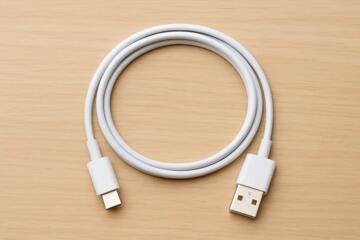
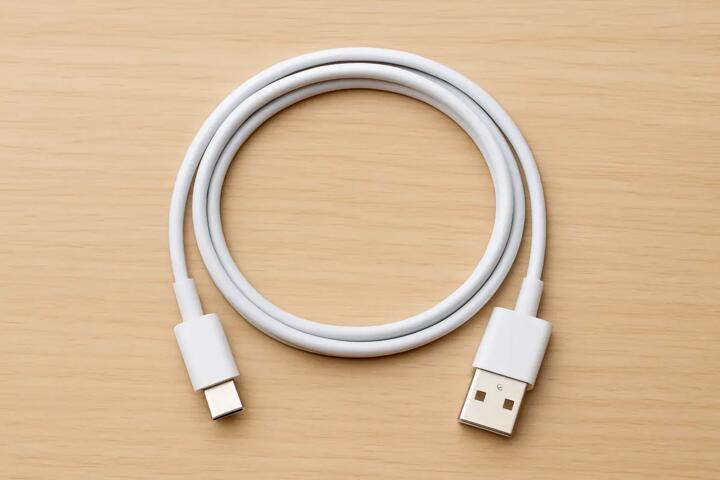
USB-C is a connector shape, not a performance guarantee. A cable labeled “USB-C” can still carry only basic power and low-speed data, while another cable with the same connector supports higher charging power and faster transfers. This matters when you buy a phone charger, a laptop dock, a portable SSD cable, or a monitor cable that relies on USB-C Alt Modes.
When you shop, treat the cable as a separate component from the device. The device may support fast charging or high-speed data, but the cable can cap the result. I’ve seen listings that show “USB-C” without mentioning whether the cable supports USB 3.x data rates or higher-watt charging, which is where buyers get stuck.
Common Cable Speed Mistakes
People often assume that “USB-C to USB-C” automatically means fast charging and USB 3.x data. In practice, cables differ by internal wiring, shielding, and controller support. Some cables include only the power conductors and a minimal data pair set, which limits data throughput even if the device can do more.
Another frequent mistake is trusting marketing terms like “fast” without a spec. Fast charging depends on negotiated power profiles between the charger and the device, and the cable must be rated for the current and voltage levels involved. If the cable is not designed for that current, the charger may fall back to a lower power mode or the device may refuse the higher profile.
Data speed also depends on the USB version supported by the cable and the host. USB 2.0 uses a different signaling method than USB 3.x, and many “charge-only” cables omit the wiring needed for USB 3.x. Even when a cable supports USB 3.x, the device and port must also support it, and some docks route signals through additional components that can reduce performance.
Supporting technologies add another layer. USB-C video output uses Alt Mode (for example, DisplayPort Alt Mode), and not every cable carries the high-speed lanes needed for video. A cable can charge a phone while still failing to drive a monitor, which feels inconsistent until you check whether the cable explicitly supports video or high-speed data.
How To Verify Cable Specs
Match USB Version To Needs
Start with the device requirement. If you need fast file transfer to an external SSD or a phone that supports USB 3.x, look for explicit wording such as “USB 3.2 Gen 1,” “USB 3.2 Gen 2,” or “USB 3.x data.” If the listing only says “USB-C” or “charging,” treat it as likely limited to USB 2.0-class data or charge-only behavior.
For a quick sanity check, compare the connector type and cable length. Longer cables can degrade signal quality, and some manufacturers publish maximum lengths for higher-speed modes. I once tested a 2 m USB-C cable labeled “USB 3.1” and saw inconsistent speeds on a laptop dock; the same cable worked better at 0.5 m, which suggests signal integrity limits rather than a device problem.
Check Charging Power Ratings
Fast charging depends on both the charger and the cable. Look for a cable rating that mentions higher-watt charging support, often expressed as “up to 60W,” “up to 100W,” or similar. If the listing includes only a current rating without context, verify whether it’s meant for USB power delivery (USB PD) rather than a generic electrical rating.
USB PD negotiation happens between the charger and the device, and the cable must be built to handle the negotiated current. If you buy a 100W-capable laptop charger but use a cable rated for lower power, the charger may negotiate down. The outcome is usually slower charging rather than a total failure, which can be frustrating because the device still “charges,” just not at the expected rate.
As a practical aside, I keep a small spreadsheet of cable ratings and device models; it prevents the common mistake of assuming a “good” cable from one purchase will match the next device’s power needs.
Confirm Video And Data Lanes
If you need monitor output, confirm the cable supports the relevant Alt Mode. Listings that mention “supports DisplayPort Alt Mode” or “supports video” are clearer than generic “USB-C to HDMI” claims. Without that, the cable may only carry USB data and power, leaving the video path unused.
Some USB-C to HDMI adapters work with USB-C ports that support video Alt Mode, but the cable itself still matters. A cable can be charge-capable and still omit the high-speed lanes required for video. When you see a dock or adapter that works only with certain cables, it’s usually because the high-speed wiring and shielding differ by cable model.
Test With Real Measurements
After purchase, test the cable with a method that reveals whether it supports the mode you need. For charging, you can measure power draw using a USB power meter between the charger and the device; this shows whether the negotiated wattage matches the charger’s capability. For data, copy a known-size file to a device that supports USB 3.x and compare transfer time against a known-good cable.
Use tools that report transfer speed rather than relying on a progress bar. On Windows, a file copy benchmark can show throughput differences; on macOS, you can time transfers and compare results. I’ve found that repeating the test twice reduces noise from background tasks, and checking the cable at a shorter length first helps isolate signal issues.
If you see stable low speeds that match USB 2.0-class behavior, the cable likely lacks USB 3.x wiring or signaling support, even if it charges normally.
Educational Case Examples
Scenario 1: A buyer purchases a USB-C cable for a phone that supports USB 3.x data. The cable listing mentions “USB-C charging” but does not mention USB 3.x. After connecting a laptop, file transfers take much longer than expected, and the device appears to connect at a lower data mode. The buyer replaces the cable with one explicitly labeled for USB 3.2 Gen 1 data and sees faster transfers consistent with the device’s supported mode.
Scenario 2: A buyer uses a USB-C cable with a laptop dock for a monitor. The dock works for charging and keyboard/mouse input, but the monitor stays black. The cable is rated for charging and basic data, yet the listing never mentions video support or Alt Mode. Switching to a cable that explicitly supports DisplayPort Alt Mode restores video output, while charging remains unchanged.
USB-C Speed Checklist
| What You Need | Cable Spec To Look For | Typical Outcome If Matched | Outcome If Cable Is Limited |
|---|---|---|---|
| Phone charging | USB PD support and watt rating (example: up to 30W/60W) | Device negotiates higher charging profile | Charging works but negotiates down to lower wattage |
| Fast file transfer | USB 3.2 Gen 1/Gen 2 data support stated | Higher throughput consistent with USB 3.x | Transfers behave like USB 2.0-class speeds |
| Monitor via USB-C | Alt Mode support (example: DisplayPort Alt Mode) or explicit video support | Video output works through the cable path | Charging and USB peripherals work, video fails |
| Docking station | Cable rated for the dock’s power and data needs | Dock functions match advertised behavior | Some ports work, others drop due to bandwidth limits |
Step-by-step checklist for a purchase:
- Write down the device’s port capability from its manual (USB 3.x, USB PD wattage, and whether it supports video Alt Mode).
- Read the cable listing for explicit USB data support and a watt rating for charging.
- Check cable length; if you need 2 m or more, prefer listings that mention stable support for the higher mode.
- Confirm video support when a monitor is involved; “USB-C to HDMI” wording can hide whether the cable carries video lanes.
- Test after purchase with a USB power meter for charging and a timed file transfer for data.
Common Mistakes To Avoid
Buying a cable based on connector shape alone causes most problems. USB-C plugs into the same port, but the internal wiring and electronics determine whether the cable supports USB 2.0, USB 3.x, USB PD, or video Alt Mode.
Another mistake is assuming that a “fast charger” guarantees fast charging through any cable. USB PD negotiation can fall back when the cable cannot handle the negotiated current, and the device still charges, just slower than expected.
People also overlook that docks and hubs can change the effective performance. A cable that supports USB 3.x can still produce lower throughput if the dock uses a slower upstream link or if the hub shares bandwidth across multiple devices.
Finally, buyers sometimes ignore return policies and keep a cable that fails their use case. If the cable does not meet the stated USB data mode or charging wattage, returning it early prevents months of “it works, but…” frustration.
FAQ
How can I tell if a USB-C cable supports USB 3.x?
Look for explicit wording such as “USB 3.2 Gen 1/Gen 2” or “USB 3.x data.” Listings that only say “charging” or omit the USB version usually indicate limited data support.
Will a higher-watt charger charge faster with any USB-C cable?
Not always. USB PD negotiation depends on the cable’s ability to handle the negotiated current; a lower-rated cable can cause the charger to fall back to a lower wattage.
Why does my monitor stay blank with a USB-C cable?
Video output requires USB-C Alt Mode support and the cable must carry the needed high-speed lanes. A cable that charges and transfers data can still fail video if it lacks Alt Mode support.
Does cable length affect USB-C speed?
Yes. Longer cables can reduce signal quality, which can force lower-speed modes or unstable behavior. Shorter lengths often perform more reliably for USB 3.x and video.
What test should I run to confirm cable performance?
Use a USB power meter for charging wattage and time a file transfer for data speed. Compare results against a known-good cable and repeat the test to reduce noise from background activity.
Author's Insight
USB-C problems usually come from mixing up connector shape with supported functions. The same USB-C plug can carry different combinations of power delivery, USB 2.0 or USB 3.x data, and video Alt Mode, depending on the cable’s internal design. Evidence from USB-C ecosystem behavior shows that listings without explicit USB version or wattage correlate with slower outcomes, especially for data and video. A practical approach is to verify the device’s port capabilities, then match the cable’s stated USB and power ratings, and finally confirm with a power meter and a timed transfer.
Key Takeaways
- USB-C connector shape does not guarantee speed; cables vary by USB data support, power delivery rating, and video Alt Mode wiring.
- Match the cable’s stated USB version and watt rating to the device’s requirements, not to the charger’s marketing.
- Test after purchase: measure charging wattage with a USB power meter and verify data speed with timed transfers.
- For monitors and docks, confirm Alt Mode or explicit video support; charging and basic USB can still work when video fails.