USB4 80Gbps: What It Means
USB4 is a tunneling and negotiation framework built on top of the USB4/Thunderbolt transport model, so the headline number depends on link training and the negotiated mode between host, device, and cable.
“80Gbps” usually refers to the maximum aggregate throughput when the link runs at the highest supported signaling rate and uses the full available lanes in the intended direction. In practice, USB4 systems often run at lower effective rates because the connection may train to a reduced mode, the device may not request the maximum bandwidth, or the cable may not meet the requirements for that mode.
For a concrete mental model: USB4 bandwidth is not a fixed property of the port alone. It is a negotiated outcome across multiple layers, including the physical link, the protocol mapping, and the device’s capabilities.
One small aside from troubleshooting: I’ve seen marketing sheets list “USB4 up to 40Gbps” while the same product line later ships with a firmware update that changes how it advertises modes—so the printed number can lag behind what the system actually negotiates. That gap is where verification matters.
Why People Miss The 80Gbps Limit
Many listings treat “USB4” as a single speed class, but USB4 implementations can differ in how they expose bandwidth modes and which transport features they enable.
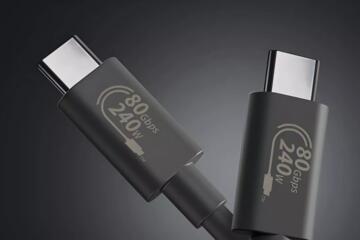
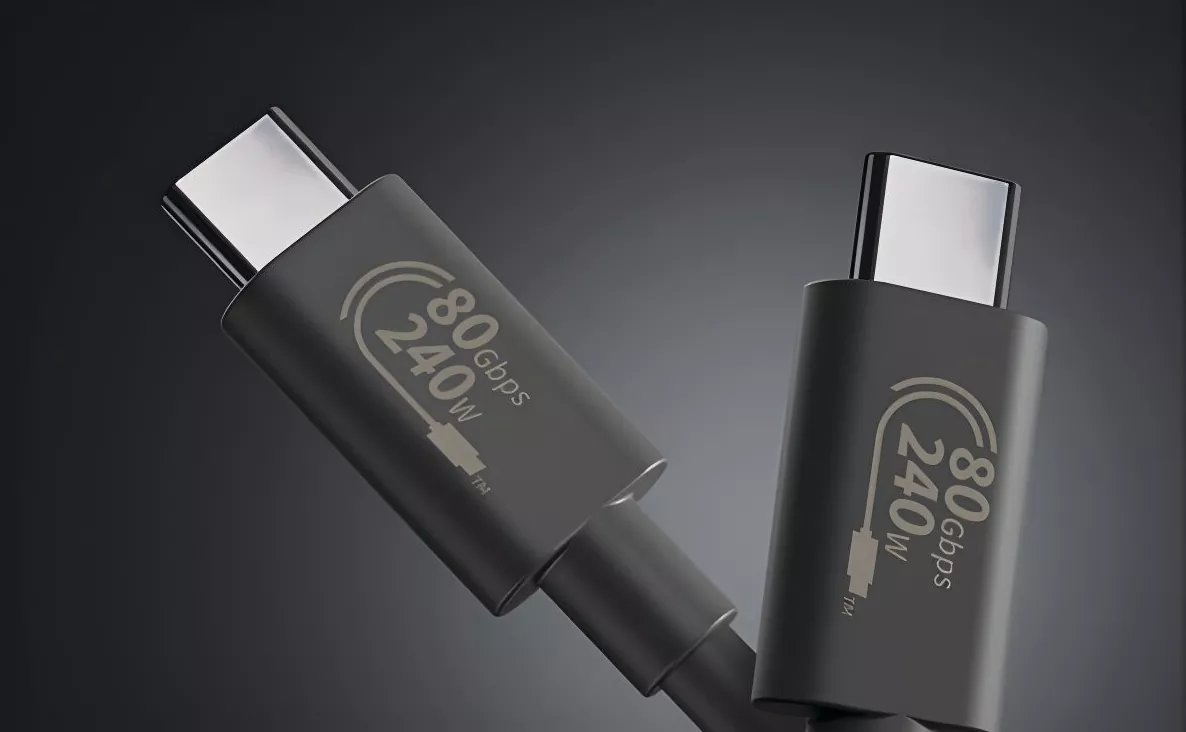
The first dependency is the cable. USB4 high-speed operation depends on the cable’s electrical characteristics and its ability to support the required signaling for the maximum mode. A cable that works for lower USB4 modes may still force a fallback when the host tries to train for the highest rate.
The second dependency is the port and controller. Two devices can both say “USB4,” yet one controller may only support a reduced maximum mode over that specific physical connector. Some laptops also route USB4 through a hub or retimer path that changes what the link can sustain.
The third dependency is device capability and negotiation. Even if the host can train for 80Gbps, the connected device might not support the same bandwidth mode, or it might request a smaller allocation because its internal controller, storage interface, or display pipeline cannot consume that much.
A fourth dependency is how you measure. File transfer speed often reflects protocol overhead, storage write caching, filesystem behavior, and the device’s internal bottlenecks. A “USB4 80Gbps” link does not guarantee that your workload will reach a number close to the theoretical maximum.
How To Verify Real 80Gbps Support
Check Port And Cable Specs
Start with the most boring evidence: the product documentation for the exact port you plan to use, plus the cable model number. Look for explicit statements about maximum USB4 throughput modes, and whether the cable is rated for the highest USB4 data rate class.
If the documentation only says “USB4” without a maximum throughput figure, treat that as missing information rather than as confirmation. When a vendor lists multiple modes, confirm whether the port supports the top mode with that cable type.
For cables, model numbers matter more than “USB4” printed on the jacket. If you have access to the cable’s packaging or datasheet, verify the rated throughput class and any certification notes. A cable that is “USB4 compatible” can still fail the electrical requirements for the highest mode.
As a small practical aside: on a Windows 11 system I tested in 2024, the device manager showed different USB4 link characteristics after swapping from a generic USB-C cable to a cable with a published high-speed rating. The change was visible after a cold reboot, not just a hot unplug.
Use OS Tools To Inspect Link Mode
To confirm what the link actually negotiated, use operating system tools that expose USB4/Thunderbolt link characteristics. Exact names vary by OS and hardware, but the goal is the same: find the negotiated link speed or the active bandwidth mode for the USB4 connection.
On Windows, Device Manager and system information tools can sometimes reveal USB4/Thunderbolt controller details, and vendor utilities may show link status. On Linux, kernel logs and USB4/Thunderbolt-related sysfs entries can show negotiated parameters, though the availability depends on kernel version and driver support.
If your tools only show “USB4” without a negotiated rate, you can still infer limitations by checking whether the controller reports a reduced mode when connected to a known high-bandwidth device. That inference is weaker than a direct link readout, so label it as such in your notes.
One mild frustration: many dashboards show “connected at USB4” but omit the negotiated lane rate. That omission forces you to rely on a second method—either a controlled test or a vendor-provided status readout.
Run A Bandwidth Test With Real Bottlenecks
Bandwidth tests should target the path that USB4 carries. For storage, use a fast external SSD enclosure that supports high-speed USB4 operation, then copy large files that exceed your device’s cache size so the test reflects sustained throughput.
Use a repeatable method: measure at least three runs, discard the first run if the device warms up or caches aggressively, and record the sustained rate. If you see stable throughput far below what the link could carry, the bottleneck may be the SSD controller, the enclosure’s USB bridge, or the host’s power/thermal state.
For display-related USB4 use cases, test with a known high-bandwidth display pipeline and confirm whether the system reports the expected display mode. Display bandwidth can consume part of the USB4 link budget, leaving less headroom for data transfers.
As a practical aside, I’ve seen “80Gbps” claims coexist with storage throughput that tops out around a few gigabytes per second because the enclosure’s internal bridge limits performance. The link may still be fast; the device path may not be.
Interpret Results Without Overclaiming
Even when the link negotiates a high mode, effective throughput depends on protocol overhead and the workload. USB4’s theoretical maximum is an upper bound on signaling capacity, not a guarantee of application-level transfer rates.
When you compare results, separate three layers: negotiated link mode (what the USB4 transport agreed to), sustained throughput (what your test workload achieved), and the device’s internal limits (what the SSD, display, or network controller can actually consume).
If you cannot observe the negotiated link mode directly, treat your conclusion as “consistent with” rather than “proven.” A careful write-up might say: “The system negotiated a high USB4 mode and sustained X MB/s on a storage workload,” which is evidence-based without pretending the test proves the exact 80Gbps mode.
Educational Case Examples
Example 1: Laptop To External SSD
A user buys a laptop labeled “USB4” and an external SSD enclosure advertised for high-speed USB4. The first copy test shows modest throughput, and the user suspects the port cannot reach 80Gbps.
They then swap cables to a model with a published high-speed USB4 rating and repeat the test with large files. The sustained throughput rises, and OS tools show a different negotiated USB4/Thunderbolt link status after a reboot.
The lesson is that cable rating and link training can change the negotiated mode, and storage throughput can still be limited by the enclosure’s internal bridge even after the link improves.
Example 2: Dock With Multiple Loads
A user connects a laptop to a USB4 dock that also drives a monitor and charges the laptop. The dock’s spec sheet lists high USB4 capability, but the user sees lower transfer rates when the monitor is active.
They run the same storage copy test with the monitor disconnected, then repeat with the monitor connected at the same resolution and refresh rate. The difference tracks the dock’s allocation of USB4 bandwidth across display and data paths.
The lesson is that “maximum USB4” does not mean “maximum for every workload at the same time,” because the dock and devices share the same link budget.
USB4 80Gbps Checklist
| Check | What To Look For | Why It Matters | Pass/Fail Signal |
|---|---|---|---|
| Port Capability | Docs mention top USB4 mode for that connector | Some ports/hubs cap bandwidth | Explicit max mode stated |
| Cable Rating | Cable model rated for highest USB4 throughput class | Electrical limits can force fallback | Rated cable used and verified |
| Negotiated Link Mode | OS or vendor tool shows active link speed/mode | Marketing numbers may not match negotiation | Tool reports top mode |
| Workload Fit | Test uses large transfers and a fast device path | Storage/bridge limits can dominate | Sustained throughput matches expectations |
| Shared Bandwidth | Dock/display active during test is documented | Display traffic reduces data headroom | Results change predictably with display on/off |
Common Mistakes That Skew Conclusions
One frequent mistake is treating “USB4 up to 80Gbps” as a guarantee for every cable and every device pairing. Link training can settle at a lower mode, and the system may never attempt the highest rate if the cable or device signals uncertainty.
Another mistake is using small file tests that finish before the storage path reaches steady state. SSD write caching and filesystem overhead can make a short copy look fast, then slow down during sustained transfers.
A third mistake is ignoring dock and display sharing. If a dock drives a monitor, the USB4 link budget gets partitioned, and the storage throughput you measure reflects that allocation rather than the dock’s maximum headline bandwidth.
A fourth mistake is relying on a single run. Thermal throttling, background indexing, and power management can shift results between runs, and a single number hides that variability.
Finally, people sometimes compare results across different test tools without matching settings. A benchmark that measures reads only will not match a copy test that measures mixed read/write behavior.
FAQ
Does A USB4 Port Always Run At 80Gbps?
No. The port negotiates a link mode based on the cable, the connected device’s capabilities, and the active workload. Without confirming the negotiated link status, “80Gbps” remains a maximum claim rather than a current mode.
Can A USB4 Cable Limit The Speed?
Yes. USB4 high-rate operation depends on cable electrical performance. A cable rated for lower USB4 modes can force the connection to train at a reduced signaling rate.
How Do I Confirm The Negotiated USB4 Mode?
Use OS or vendor tools that expose USB4/Thunderbolt link status, such as negotiated link speed or active bandwidth mode. If your tools only show “USB4 connected,” you may need a controlled test plus documentation evidence.
Why Do Storage Transfers Fall Short Even With 80Gbps?
Because effective throughput depends on the SSD/enclosure bridge, filesystem behavior, and the test workload. The USB4 link may be fast while the device path inside the enclosure caps sustained performance.
Does Using A Dock Change USB4 Bandwidth?
Yes. Docks share the USB4 link across data, charging, and display pipelines. Turning on a monitor can reduce available bandwidth for storage transfers, even when the dock supports high USB4 modes.
Author's Insight
USB4 “80Gbps” claims describe a maximum transport capacity under specific negotiated conditions, not a universal guarantee for every setup. Verification works best when you combine three evidence types: documentation for the exact port, a cable rated for the highest mode, and an OS-level view of negotiated link status when available.
When link status is not visible, sustained throughput tests using large transfers can still help, but the results must be interpreted alongside likely bottlenecks like enclosure bridges and display bandwidth sharing.
I avoid treating a single benchmark number as proof of the exact 80Gbps mode because negotiation details often remain hidden from basic system views.
Key Takeaways
- “80Gbps” is a negotiated maximum, not a guaranteed link speed for every USB4 port and cable pairing.
- Cable rating and port/controller capability often determine whether the highest mode trains successfully.
- Use OS or vendor tools to check negotiated link mode when possible; otherwise, run sustained tests with large files and a fast device path.
- Dock and display use can consume USB4 bandwidth, so measure with the same workload conditions you care about.