Mesh Wi‑Fi Basics
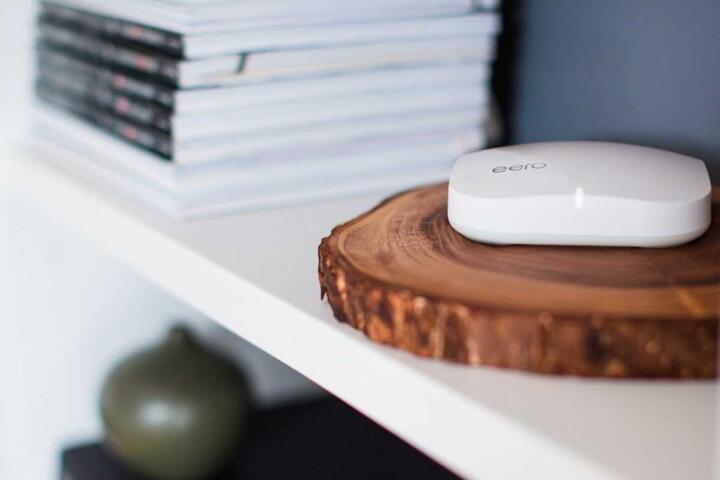
A mesh Wi‑Fi system uses multiple access points, called nodes, that work together to cover a home or office. Instead of relying on one router broadcasting from a single location, the nodes share the job of sending Wi‑Fi signals to devices. Many systems present one network name and one password so your phone or laptop can roam between nodes without manual switching.
Each node contains radios and a controller function. Some controllers run inside the main router, while others run on the nodes themselves. In practice, the system still depends on the same Wi‑Fi standards you see in any router: 802.11n/ax (Wi‑Fi 4/Wi‑Fi 6) and the frequency bands you choose, such as 2.4 GHz and 5 GHz. A mesh system also needs a way to connect nodes to each other, called backhaul, which can be wired (Ethernet) or wireless (radio-to-radio).
Example: if you stream video in a bedroom far from the router, a mesh node placed closer to that room can reduce packet loss and lower retransmissions. The improvement comes from shorter wireless distance and better signal-to-noise ratio, not from magic. On a typical Wi‑Fi 6 setup, you may see higher throughput near the node and fewer buffering events, but the exact results depend on interference and backhaul quality.
Common Pain Points
People often buy mesh systems expecting “whole-home coverage” as a fixed guarantee. Coverage depends on building materials, node placement, and interference from neighbors. A concrete wall can change signal behavior more than a spec sheet suggests, and 2.4 GHz can travel farther while 5 GHz often performs better at shorter range.
Another frequent misunderstanding involves backhaul. If nodes connect wirelessly, the system must spend airtime on both client traffic and node-to-node traffic. That can reduce real throughput, especially when the backhaul uses the same band as the clients. Wired backhaul usually performs better, but it requires Ethernet cabling or a powerline setup that meets minimum performance.
Roaming behavior also gets misread. “One network name” does not force every device to roam instantly. Some phones and laptops hold onto a weak signal until the signal drops below a threshold, which can cause brief slowdowns. Mesh systems try to manage roaming with standards like 802.11k/v/r, but device support varies, and some clients ignore parts of the guidance.
Finally, many users overlook configuration drift after installation. Firmware updates can change band steering behavior, minimum RSSI thresholds, or how the system chooses channels. If you installed a system in 2023 and never checked settings since, you may be running a different behavior than the one you assumed. I once saw firmware version 1.2.7 change the default channel plan on a dual-band mesh, and the result looked like “random” speed swings for a week.
How To Choose And Set Up
Pick Backhaul First
Start by deciding how nodes will connect to each other. Wired backhaul via Ethernet typically yields more consistent performance because it removes the “double use” of wireless airtime. If you cannot run Ethernet, choose a mesh model that supports dedicated wireless backhaul or at least offers a clear backhaul mode in its app.
When you test, measure throughput at the farthest room you care about. Use a tool such as Ookla Speedtest or a local network test app, then repeat after moving one node by a few meters. If throughput drops sharply when you move the node, the backhaul link margin is likely thin.
Realistic outcome: in many homes, moving from wireless backhaul to wired backhaul can raise sustained speeds in the far room by a noticeable margin, but the exact gain depends on node distance and interference. If your wireless backhaul link is already strong, the improvement can be smaller.
Place Nodes With Signal Logic
Node placement matters more than marketing claims. Put the main node where the internet enters, then place additional nodes so each one covers a “hop” to the next. Avoid placing nodes behind large metal objects or inside closed cabinets, and avoid stacking nodes too close together where they compete for the same clients.
Use the mesh app’s signal indicators if available, but treat them as directional hints rather than lab measurements. A better method uses a laptop or phone to walk the route while watching signal strength and latency. If you see high latency spikes when you cross a hallway, you likely need a node closer to that transition area.
Small aside: I often recommend placing a node at about the same height as typical router placement, roughly chest to head height, because signal patterns differ between low shelves and open areas.
Match Wi‑Fi Standards To Devices
Wi‑Fi 6 (802.11ax) nodes can improve efficiency and performance under load, but older devices still connect using their supported standards. If your home has many Wi‑Fi 5 or Wi‑Fi 4 devices, you still benefit from better coverage, yet the “headline” speeds may not appear on those clients.
Check whether your devices support features like 5 GHz and Wi‑Fi 6. A phone that only supports 2.4 GHz will not gain from Wi‑Fi 6 radios, and a laptop that supports 5 GHz but sits near a weak node can still suffer. In the mesh app, review band steering settings and roaming options if the system exposes them.
Realistic outcome: you may see the biggest improvement on devices that can use 5 GHz or 6 GHz (if supported by your hardware). If your devices mostly connect on 2.4 GHz, the improvement often comes from fewer dead zones rather than higher peak throughput.
Test With Repeatable Checks
After setup, run a repeatable test plan. Measure speeds in three locations: near the main node, mid-home, and the farthest room. Record results before and after any node move. Also test latency by running a ping to a local gateway or using an app that reports round-trip time.
Do not judge performance from one speed test run. Wi‑Fi varies with time of day, neighbor activity, and household usage. If you want a simple rule, run at least three tests per location and compare the median.
Side observation: many mesh apps show “connected clients” counts, but those counts do not reveal whether the client is on a good channel or stuck on a congested one. Channel congestion can look like “slow Wi‑Fi” even when signal strength looks fine.
Case Examples
Townhouse With Concrete Walls
A family installs a dual-band mesh system in a townhouse with thick concrete between floors. They place the main node near the entry and add two nodes on each floor. The app shows acceptable signal strength, yet streaming still buffers in the kitchen on the ground floor.
The fix comes from backhaul choice. The kitchen node connects wirelessly to the upstairs node, and the backhaul link uses the same band as client traffic. After the family runs Ethernet to the kitchen node (using existing conduit), the buffering reduces during peak evening use. Their speed tests show more stable throughput, and latency spikes during video playback become less frequent.
Apartment With Many Neighbors
A tenant in a dense apartment uses a mesh system with wireless backhaul. The tenant notices that speeds drop when neighbors start using their own Wi‑Fi heavily. The mesh app suggests strong signal, but the throughput fluctuates.
The tenant changes node placement slightly, moving one node away from a shared wall and toward the living room center. They also check channel settings in the mesh app and allow automatic channel selection rather than forcing a fixed channel. After these changes, the far-room performance improves because the nodes land on less congested channels more often.
Comparison Checklist
| Decision Point | What To Look For | Why It Matters | Quick Check |
|---|---|---|---|
| Backhaul | Ethernet backhaul support or dedicated wireless backhaul | Wireless backhaul can reduce client throughput | Test far-room speed before/after node move |
| Wi‑Fi Bands | 2.4 GHz + 5 GHz (and 6 GHz if supported) | Different bands trade range for speed | Confirm your devices connect on 5 GHz when needed |
| Roaming Features | 802.11k/v/r support and client compatibility | Roaming guidance varies by device | Walk test while streaming or video calling |
| App Controls | Channel selection, band steering, and firmware updates | Defaults can change after updates | Record settings after setup; re-check after updates |
Common Mistakes
One mistake involves buying “more nodes” without changing placement. If nodes overlap heavily, they can increase contention and reduce performance in the overlap zone. Another mistake places nodes at the edge of coverage so the backhaul link stays weak; the client signal might look acceptable while the node-to-node link struggles.
People also confuse advertised “AX speed” with real throughput. Wi‑Fi rates in marketing often assume ideal conditions, short distances, and minimal interference. In a real home, throughput depends on channel width, modulation, retransmissions, and how many devices transmit at once.
Some users disable features like band steering or roaming assistance because they want “one simple network.” That can backfire when devices cling to 2.4 GHz or fail to move to a better node. If you change settings, change one variable at a time and test in the far room.
Finally, users sometimes rely on a single speed test run at one time of day. That hides congestion patterns. If you see inconsistent results, test at the same times for a few days and compare medians rather than chasing one outlier.
FAQ
Do Mesh Systems Replace My Router?
Many mesh kits include a router-like main node that handles routing and DHCP, so you may not need a separate router. Some setups work in access-point mode behind an existing router. Check whether your internet gateway already performs routing and whether the mesh system supports bridge or AP mode.
Will Mesh Wi‑Fi Work With Any Internet Plan?
Mesh Wi‑Fi does not change your internet plan’s speed or latency. It improves local wireless performance and coverage. If your internet connection is slow, mesh can still deliver better Wi‑Fi to devices, but it cannot raise the internet throughput beyond the plan.
Is Wireless Backhaul Always Worse?
Wireless backhaul often reduces throughput compared with Ethernet backhaul because it consumes airtime for node-to-node communication. The impact varies with distance, interference, and whether the system uses a dedicated backhaul radio or band. Testing in your far room shows the real effect.
How Many Nodes Do I Need?
Node count depends on home layout, wall materials, and where you want reliable coverage. A common approach uses one node per “coverage zone” and ensures each additional node has a strong backhaul path to the rest of the mesh. Use signal indicators and walk tests to confirm rather than relying on square-foot claims.
Can Mesh Improve Gaming Or Video Calls?
Mesh can reduce buffering and improve call stability by lowering packet loss and latency spikes caused by weak signal. It cannot fix high internet latency from your ISP. For best results, place nodes to minimize weak-signal roaming during active sessions and test with the same device you use for calls.
Author's Insight
Mesh Wi‑Fi systems behave like coordinated access points, and their performance hinges on backhaul quality, placement, and client roaming behavior. Real-world results often diverge from marketing because Wi‑Fi throughput depends on interference, retransmissions, and how many devices share a channel. A careful setup treats the far room as the test target, not the room where the router sits. If you keep one variable at a time—node position, backhaul method, or band steering—you can usually identify why a mesh system underperforms. When you see firmware changes, re-check channel and roaming settings because defaults can shift after updates.
Key Takeaways
- Mesh Wi‑Fi spreads coverage across multiple nodes, but it still relies on Wi‑Fi physics and local interference.
- Backhaul choice drives many performance outcomes; Ethernet backhaul usually beats wireless backhaul.
- Roaming behavior depends on client support and signal thresholds, so “one network name” does not guarantee instant switching.
- Test in the farthest room you care about using repeatable measurements, then adjust placement one change at a time.