USB4 Vs Thunderbolt 4
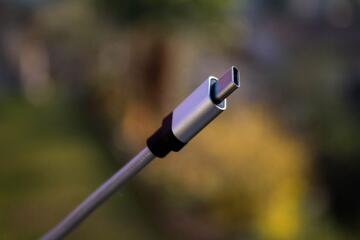
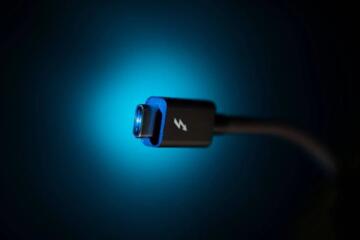
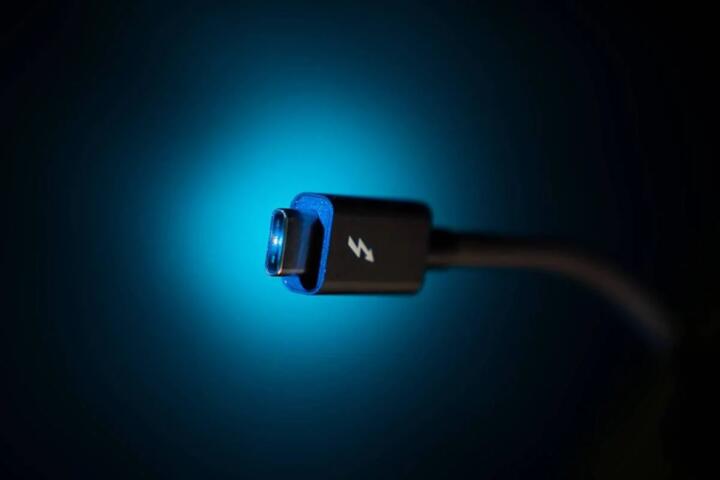
USB4 and Thunderbolt 4 both use the USB-C connector, but they do not behave the same under load. USB4 is a USB standard that rides on the same underlying transport ideas as Thunderbolt, yet it leaves more room for vendor choices. Thunderbolt 4 is a stricter Intel-led specification that sets minimum requirements for ports, cables, and docking behavior.
Speed depends on the negotiated link mode and the device’s controller, not the label on the box. A USB4 port can run at up to 40 Gbps, while Thunderbolt 4 also supports up to 40 Gbps. In practice, storage and display workloads often hit lower throughput because of SSD controller limits, PCIe lane mapping, and how the dock routes signals.
For a concrete example, an external SSD that can sustain 2,000–3,500 MB/s over PCIe Gen3 x4 will not magically exceed that ceiling just because the cable says “40Gbps.” The connection may be fast enough, but the SSD and its firmware still cap performance. That cap shows up as a smaller transfer rate than the theoretical maximum, even when the link negotiates correctly.
Compatibility also hinges on what you attach: a bus-powered USB device, a high-speed NVMe enclosure, a multi-monitor dock, or a USB-C to HDMI adapter. Thunderbolt 4 tends to be more predictable for docks and displays because it defines stricter rules for how ports must behave. USB4 can work well too, but the “it depends” part shows up more often with docks and video adapters.
Common Speed And Fit Issues
People often assume that “USB4” guarantees the same experience across laptops, docks, and cables. The standard supports up to 40 Gbps, yet it does not force every manufacturer to expose the same performance profile. Some devices may run at reduced link speeds, or they may route fewer PCIe lanes to an external enclosure.
Another frequent mistake involves cables. USB-C cables vary widely in their internal wiring and signaling support. A cable that works for charging or basic USB data may not support the higher-speed modes needed for 20/40 Gbps operation. Thunderbolt 4 requires certified cables for full performance, while USB4 depends more on what the cable and host actually support.
Display compatibility is where confusion shows up most. Video over USB-C relies on DisplayPort Alt Mode or Thunderbolt tunneling, and the outcome depends on the port’s capabilities. A USB4 port may support DisplayPort Alt Mode, but not every USB4 implementation supports the same set of video features through every adapter. With docks, the dock’s internal controller and firmware also matter, and a dock can be “USB-C compatible” while still failing to drive a specific monitor setup.
There is also a dependency on the host controller and firmware. Laptops sometimes negotiate different modes depending on power state, thermal limits, or BIOS settings. I have seen cases where a dock works at full speed after a cold boot but drops to a lower mode after sleep; the behavior can be vendor-specific and, frankly, annoying to debug.
Finally, throughput tests can mislead. Many users run a short benchmark and stop, even though sustained performance depends on thermal throttling and SSD cache behavior. A 1–2 second burst can look close to peak, while a 30–60 second transfer reveals the real limit.
How To Get The Expected Speed
Check Port And Cable Claims
Start with the laptop or device documentation for the exact port type. Look for explicit wording such as “Thunderbolt 4” or “USB4” and, for Thunderbolt, whether the port supports Thunderbolt devices and docks. Then verify the cable: for Thunderbolt 4 full performance, use a Thunderbolt-certified cable rather than a generic USB-C cable that “looks right.”
On the USB4 side, cable quality still matters. If a cable is rated for 40 Gbps, it is more likely to support the higher modes, but the host and device must also negotiate those modes. A small aside from a practical workflow: I keep a USB-C cable labeled “40Gbps” in my kit, and I still confirm behavior by checking negotiated link speed in the OS rather than trusting the printed spec.
Match Your Dock And Display Needs
For multi-monitor setups, treat the dock as part of the compatibility chain. Thunderbolt 4 docks typically offer more consistent behavior because the specification constrains how ports route PCIe and display signals. With USB4 docks, verify the dock’s supported monitor resolutions and refresh rates in its own documentation, not just the laptop’s port label.
If you use adapters (USB-C to HDMI or USB-C to DisplayPort), confirm that the adapter supports the same video transport your port uses. Some adapters rely on DisplayPort Alt Mode; others rely on Thunderbolt tunneling. When the transport does not match, the adapter may show a connection but no usable video signal.
As a quick sanity check, test one monitor first. If a single display works but the second fails, the dock may be hitting bandwidth limits or the host may be allocating lanes differently than expected.
Use Realistic Storage Tests
For external SSDs, compare sustained throughput rather than only peak numbers. Use a tool that can run longer transfers and report consistent results. On Windows, tools like CrystalDiskMark can help, while on macOS and Linux you can use vendor-agnostic copy tests to a local temp folder and measure elapsed time.
Expect that a PCIe Gen3 x4 NVMe enclosure often lands around 2,000–3,500 MB/s depending on the SSD model and enclosure thermals. If your results are far below that, the cause is usually link negotiation (fewer lanes), a limited controller in the enclosure, or a cable that does not support the higher-speed mode.
One mild frustration worth planning for: some benchmark tools run too quickly and hide throttling, so you may need a longer test window to see the true ceiling.
Validate With OS-Level Link Info
Operating systems can expose negotiated link details. On Windows, Device Manager and hardware info pages sometimes show whether the connection is running at a higher mode, and Thunderbolt software can list connected devices and their status. On Linux, utilities like boltctl (for Thunderbolt) and PCIe/USB topology tools can help identify what is actually negotiated.
On macOS, system reports can show Thunderbolt device information, though the exact fields vary by version. I once compared two docks on the same laptop and found that one negotiated a higher mode after a firmware update; the difference was visible in the system report even though both docks were marketed similarly.
Case Examples For Buyers
USB4 Laptop With A USB-C Dock
An anonymized buyer has a USB4 laptop and a USB-C dock advertised for “up to dual 4K.” The buyer connects two monitors and an external SSD. The SSD copies files at a lower rate than expected, and one monitor occasionally blanks after sleep.
The likely cause is bandwidth allocation and video transport differences inside the dock. The dock may be using a mode that reserves more link capacity for display, leaving fewer resources for PCIe tunneling to the SSD. The fix is to test the SSD alone on the laptop port, then test the dock with only one monitor, and finally retest with both monitors. If the SSD speed recovers when displays are reduced, the dock is the bottleneck rather than the laptop’s USB4 label.
Thunderbolt 4 Dock With NVMe Enclosure
An anonymized buyer uses a Thunderbolt 4 laptop with a Thunderbolt 4 dock and a Thunderbolt-capable NVMe enclosure. The buyer sees near-expected SSD throughput but notices that a USB-C to HDMI adapter fails to show video.
The likely cause is adapter transport mismatch. The dock may route display through Thunderbolt tunneling, while the adapter expects DisplayPort Alt Mode. The buyer resolves the issue by using a dock-supported display output method (for example, a native DisplayPort/HDMI port on the dock) rather than relying on a generic adapter. This scenario highlights why “USB-C” alone does not guarantee video compatibility.
Speed And Compatibility Checklist
| Scenario | What To Expect | What To Check | Common Failure Mode |
|---|---|---|---|
| External SSD over USB4 | Up to 40 Gbps link, but sustained speed depends on enclosure and SSD | Cable rating, enclosure PCIe lane support, sustained benchmark | Negotiates lower mode or fewer lanes; cable not high-speed |
| External SSD over Thunderbolt 4 | More consistent tunneling behavior for docks and enclosures | Thunderbolt-certified cable, dock model compatibility | Adapter/enclosure expects a different transport or dock firmware limits |
| Dual monitors via dock | Thunderbolt docks tend to be more predictable | Dock’s stated resolutions/refresh rates, transport type | One monitor works, the other fails due to bandwidth or transport mismatch |
| USB-C to HDMI adapter | Works only when the port and adapter agree on video transport | Adapter spec for DisplayPort Alt Mode vs Thunderbolt tunneling | No signal despite “connected” status |
Step-by-step checklist for a purchase decision: confirm the laptop port label, confirm the cable rating, confirm the dock’s monitor specs, test one device at a time, then run a sustained transfer test. If the first test passes but the combined setup fails, the bottleneck usually sits in the dock’s internal routing rather than the laptop’s headline port speed.
Common Mistakes To Avoid
Buying a dock based only on the laptop port name leads to mismatches. A USB4 laptop can connect to a USB4 dock, yet the dock may not support the exact display topology you want. The result looks like “compatibility problems,” but it is usually a bandwidth or transport limitation inside the dock.
Using a generic USB-C cable for high-speed claims is another common error. Many cables charge and transfer basic USB data, but they do not carry the signaling needed for 20/40 Gbps. If you see lower-than-expected SSD throughput, swap cables before assuming the host is at fault.
Relying on short benchmarks also creates false confidence. A 5-second test can show a high number even when the connection throttles under sustained load. Run a longer transfer and watch temperatures on the SSD enclosure if the enclosure has a sensor or if the enclosure design traps heat.
Finally, ignoring firmware updates can keep you stuck. Thunderbolt docks and some USB4 docks receive firmware updates that address display negotiation or power management quirks. A mild aside: I have seen a dock behave differently after a BIOS update dated 2024-10, and the change was visible only after sleep/wake testing.
FAQ
Does USB4 Always Reach 40 Gbps?
No. USB4 supports up to 40 Gbps, but the negotiated link mode depends on the host, device, and cable. Real transfers also depend on the SSD controller and enclosure design.
Do Thunderbolt 4 Cables Matter?
Yes for full performance. Thunderbolt 4 requires certified cables to meet the spec’s signaling requirements, while generic USB-C cables may limit the link speed.
Will A Thunderbolt 4 Dock Work With USB4 Ports?
Often it works, but behavior depends on the dock and the host’s tunneling and display support. Some docks require Thunderbolt tunneling for certain display modes, so verify the dock’s compatibility notes for USB4 hosts.
Why Does My SSD Speed Drop When I Plug In Monitors?
Docks share the available link bandwidth between display and PCIe tunneling. When displays consume more bandwidth, the SSD may negotiate a lower mode or fewer effective resources.
How Can I Confirm What Mode My Link Uses?
Use OS-level device information and, when available, Thunderbolt software status pages. For storage, compare sustained throughput with a known-good test and swap cables to rule out signaling limits.
Author's Insight
USB4 and Thunderbolt 4 both advertise 40 Gbps maximum bandwidth, yet the user experience hinges on negotiation details and how devices share that bandwidth. Thunderbolt 4 tends to be more predictable for docks and multi-display setups because it constrains minimum requirements for ports and certified cables. USB4 can deliver excellent results for storage when the cable and enclosure support the higher modes, but dock and adapter compatibility varies more across implementations. A practical approach is to test in isolation (SSD alone, then dock with one display) and only then judge the full setup.
Key Takeaways
- 40 Gbps is a maximum link capability, not a guarantee of sustained SSD or display performance.
- Cable quality and certification matter for high-speed modes, especially with Thunderbolt 4.
- Docks and adapters introduce extra compatibility variables through bandwidth sharing and video transport choices.
- Use sustained tests and isolate components to identify whether the bottleneck is the host, dock, cable, or enclosure.