Two-Factor Authentication
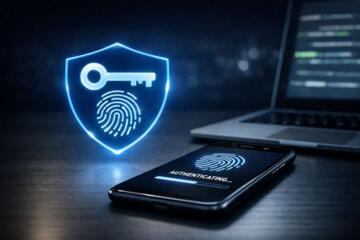
Two-factor authentication (2FA) requires two different types of proof before a login completes. The first factor is usually a password (something you know). The second factor is typically a one-time code or a hardware key (something you have), generated by an authenticator app, sent by SMS, or stored in a physical device.
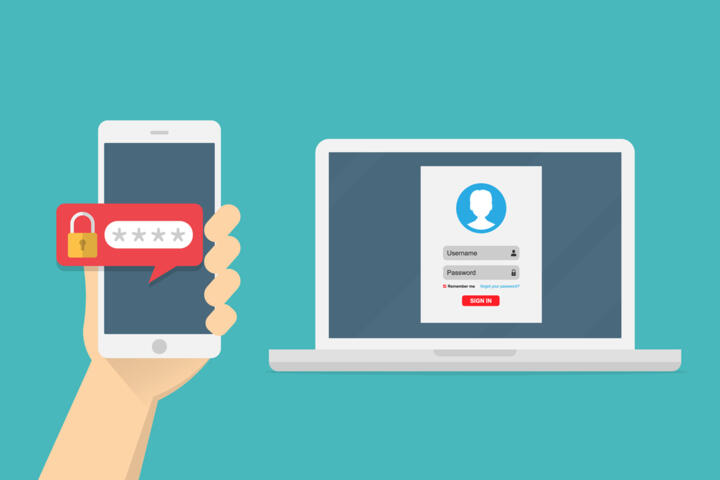
In practice, 2FA changes the login flow. After you enter your password, the service prompts for a code. That code changes every short interval, so a stolen password alone usually cannot complete the sign-in.
Two evidence-based points help frame the risk reduction. First, the U.S. National Institute of Standards and Technology (NIST) notes that multi-factor authentication reduces the likelihood of account compromise compared with single-factor passwords. Second, NIST’s Digital Identity Guidelines describe authenticator-based methods and hardware tokens as stronger than SMS for many threat models, mainly because SMS can be intercepted or redirected.
Pain Points And Errors
People often treat 2FA as a single toggle, then get surprised by the edge cases. A code that arrives late, a phone that changes numbers, or a lost authenticator device can lock you out. Another recurring issue is enabling 2FA on the account, then failing to save backup codes or recovery options.
Dependencies matter. 2FA relies on the authentication method you choose, the device that generates or receives the second factor, and the service’s recovery flow. If your authenticator app is backed up incorrectly, or if your phone is wiped without restoring the app, the second factor disappears.
SMS-based 2FA adds additional dependencies: carrier routing, SIM integrity, and the provider’s ability to detect suspicious activity. Attackers have used SIM swap techniques in the past, and SMS messages can also be delayed during outages. Even when SMS works, it still creates a second channel that can be abused more easily than a local authenticator or a hardware key.
How To Turn On 2FA
Start With Recovery Options
Before enabling 2FA, open the account’s security settings and review recovery methods. Look for backup codes, secondary email addresses, and device-based recovery. Save backup codes offline and store them somewhere you can access later. If the account offers multiple recovery methods, choose at least two that do not depend on the same single device.
This works because account recovery is the safety net when the second factor fails. In practice, you might download a PDF of backup codes, then print it or store it in a password manager vault. A small aside: on some services, backup codes are shown only once; I’ve seen people close the window and later discover the codes are gone.
Realistic outcome: if you lose your phone, backup codes often restore access within minutes. If you skip them, recovery can take days or require identity verification, depending on the provider.
Choose Authenticator Or Hardware
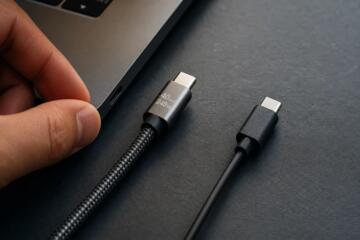
When selecting the second factor, prefer an authenticator app or a hardware security key over SMS when the service supports it. Authenticator apps generate time-based one-time codes locally on your device. Hardware keys perform cryptographic authentication and do not rely on phone numbers.
In practice, you’ll scan a QR code during setup. The authenticator app stores a secret tied to that account, then generates codes. If you use a hardware key, you usually register it once, then use it for future logins. A mild frustration: some accounts label options in ways that hide the difference between “authenticator app” and “push notification,” so read the method description carefully.
Numbers to anchor expectations: many authenticator apps use 6-digit codes that rotate every 30 seconds, which means you have a short window to enter the code. Hardware keys typically avoid code entry entirely, but you must have the key with you.
Turn On 2FA For Critical Accounts
Enable 2FA first on accounts that control access to other accounts. Email is the usual starting point because password resets often route through it. Then add 2FA to financial services, cloud storage, and any account that holds personal identifiers.
This works because compromising an email account can lead to password resets across multiple services. In practice, you might set up 2FA on your email provider, then immediately check whether your email account has a second recovery email and whether your phone number is current.
Realistic outcome: after you enable 2FA, sign-ins from new devices should prompt for the second factor. Existing sessions may continue until they expire, so you should also review “trusted devices” and session lists if the service offers them.
Educational Case Examples
Scenario 1: A person enables 2FA on a shopping account using SMS, then later changes phone carriers. During the carrier transition, the SMS codes stop arriving. The person restores access by using backup codes that were saved during setup, then switches to an authenticator app for future logins.
Scenario 2: A person turns on authenticator-based 2FA for email and registers a hardware key. When traveling, they lose their phone for a day. They log in using the hardware key, then restore the authenticator app from a backup so they can continue generating codes.
These scenarios show the same pattern: 2FA reduces damage from password theft, but recovery planning determines whether you stay in control when devices change.
2FA Method Comparison
| Method | What You Use | Common Failure Mode | Practical Setup Tip |
|---|---|---|---|
| SMS codes | Phone number | SIM swap or delayed messages | Keep carrier account secure and verify number changes |
| Authenticator app | Time-based one-time codes | Phone loss without backup | Save backup codes and confirm app restore works |
| Hardware security key | Physical token | Key lost or not carried | Register at least two keys if the service supports it |
| Push approval | Notification on device | Accidental approval of prompts | Use number matching or verify details before approving |
Step-by-step checklist: (1) Open security settings. (2) Save backup codes. (3) Choose authenticator app or hardware key when available. (4) Turn on 2FA for email first, then other critical accounts. (5) Test a login from a new device. (6) Review trusted devices and session lists.
Common Mistakes To Avoid
One mistake is enabling 2FA and then deleting the recovery information. Backup codes are often printed once or downloaded once, and the account may not show them again. Another mistake is relying on a single device without a recovery plan. If your phone is replaced, the authenticator secrets may not transfer unless you restore them correctly.
People also confuse “2FA enabled” with “2FA required every time.” Many services remember devices after a successful login, which reduces prompts. If you share devices or use a public computer, you should check whether “remember this device” is turned on and whether you can revoke it.
SMS-based setups can fail during number changes. If you switch carriers, verify that the old number still receives messages long enough for verification. Some providers also require additional identity checks during recovery, which can slow access.
Another practical error involves time drift. Authenticator codes depend on the device clock; if your phone time is wrong, codes will not match. A quick fix is to enable automatic time settings, then retry within the code’s short validity window.
FAQ
What counts as two factors?
Two factors come from different categories such as a password (knowledge) plus a one-time code or hardware key (possession). Services may also use biometrics as one factor, but the exact categories depend on the provider’s design.
Is SMS 2FA safer than no 2FA?
SMS 2FA adds a second channel, so it generally reduces risk compared with password-only logins. NIST guidance and many security analyses treat SMS as weaker than authenticator apps or hardware keys because SMS can be intercepted or redirected.
What if I lose my phone with an authenticator app?
Use backup codes or a second registered method such as a hardware key. If you did not save recovery options, you may need to complete the provider’s identity verification process, which can take longer.
Do I need 2FA on every account?
Prioritize accounts that control password resets, such as email, then add 2FA to financial and cloud services. If an account contains sensitive personal data or links to other accounts, enabling 2FA reduces the impact of password theft.
Can I use multiple 2FA methods?
Many services let you register more than one method, such as an authenticator app plus a hardware key. Using multiple methods improves recovery options when one device fails.
Author's Insight
2FA reduces account takeover risk by requiring a second proof beyond a password, but it shifts the problem from “password guessing” to “second-factor recovery.” NIST’s digital identity guidance and common security practice both treat authenticator apps and hardware keys as stronger than SMS for many scenarios. The most practical approach is to enable 2FA on high-impact accounts, save backup codes, and test a login from a new device before you rely on it during an emergency. If you manage multiple accounts, a password manager plus 2FA registration tracking can prevent the “I turned it on, then forgot how” problem.
Key Takeaways
Turn on 2FA by saving backup codes first, then choosing an authenticator app or hardware key when available. Expect short-lived codes for app-based methods and device prompts for push-based methods, which means you should verify time settings and prompt behavior. The main limit is recovery: if you lose your phone or key without backups, access can take longer than a normal login. If you suspect account compromise, contact the service’s security team and follow their account recovery steps rather than trying random fixes.