Wi‑Fi Security Basics
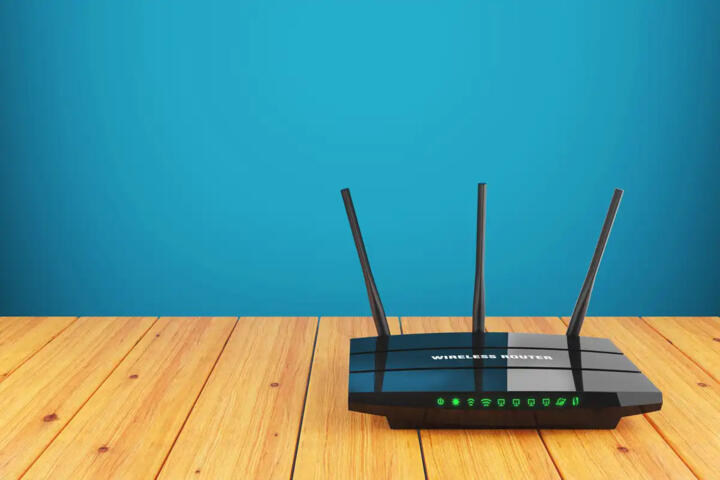
Home Wi‑Fi is the gateway between your devices and the internet, so weak settings can expose personal data and allow unwanted access. Most routers use WPA2 or WPA3 to encrypt traffic, and the encryption choice affects how hard it is for an attacker to read data over the air. In 2018, the Wi‑Fi Alliance published WPA3 certification details, and WPA3 Personal adds protections against offline password guessing compared with WPA2. Many home routers also support 2.4 GHz and 5 GHz bands, and the band you choose changes range and interference patterns.
Start with the router.
Main Wi‑Fi Pain Points
People often secure the Wi‑Fi password but ignore the rest of the router. They may reuse the same password across accounts, leave remote management enabled, or keep the firmware years out of date, which increases the chance of known vulnerabilities. Another common mistake is trusting the “guest network” label while leaving the guest network bridged to internal devices, which can still expose local services. When a device joins a network, it receives network-level access based on router rules, not based on the device’s own security posture.
Attackers target weak entry points.
Biologically, the “pain” here is not a direct health mechanism, but Wi‑Fi insecurity can indirectly affect health-related routines. For example, many people stream health content, manage wearable data, or store medical documents in cloud accounts that rely on the same email and authentication flows. If an attacker gains access to your network, they can attempt credential theft through phishing, session hijacking, or malware delivered via compromised devices. Even without direct medical data theft, compromised devices can disrupt access to health apps and increase stress during urgent situations.
Dependencies matter: Wi‑Fi, router, and devices.
Solutions And Advice
Switch To WPA3 Or WPA2
Open your router’s admin page and set Wi‑Fi security to WPA3-Personal if available, otherwise WPA2-Personal with AES. This works because modern Wi‑Fi security encrypts data frames and uses authenticated key exchange, which blocks passive eavesdropping and makes active attacks harder. In practice, you will see options like “WPA3-Personal,” “WPA2/WPA3 Mixed,” or “WPA2-Personal (AES).” If you have older devices that fail to connect, use a mixed mode temporarily, then replace or update the device firmware later.
Use a modern mode.
After changing security mode, reconnect each device and confirm it shows the expected security type in its Wi‑Fi details. On Windows 11, the Wi‑Fi status page shows the security type, and on Android the Wi‑Fi network details screen often shows “WPA3” or “WPA2.” If you see “WEP” or “WPA” anywhere, stop and correct the setting. Firmware versions vary by router model, so the exact menu path differs, and the router’s own help text is the best reference.
Use A Unique Strong Passphrase
Set a long passphrase for the Wi‑Fi network and do not reuse it from other accounts. This works because Wi‑Fi passwords protect the key exchange, and longer passwords reduce the chance of successful guessing. In practice, aim for at least 16 characters with a mix of words and separators, and avoid patterns like “Home12345.” A password manager can generate and store the passphrase, which reduces the odds of writing it down incorrectly.
Length beats complexity.
When you change the Wi‑Fi password, update the passphrase on every device that stores it, including printers and streaming boxes. If you have a guest network, use a different passphrase from the main network so visitors cannot access internal devices. If your router supports separate SSIDs for 2.4 GHz and 5 GHz, keep the passphrases the same only if you want seamless roaming, and keep them different only if you accept extra setup work.
Update Router Firmware Regularly
Check for router firmware updates in the admin interface and install them. This works because vendors patch vulnerabilities in router services, Wi‑Fi drivers, and management endpoints, and those patches can reduce real-world exploitability. In practice, schedule a check every 3–6 months, and after updating, reboot the router and re-test Wi‑Fi stability. I often see routers with firmware like “1.0.12” still running years after release, and that gap tends to correlate with missing security fixes.
Verify the firmware version.
Before updating, note the current firmware version and model number, then confirm the update file comes from the vendor’s site or the router’s built-in updater. Avoid third-party “firmware packs” unless you understand the support and security implications. If the update fails, do not keep retrying indefinitely; follow the vendor’s recovery steps, because repeated partial updates can corrupt settings.
Disable Remote Administration And UPnP
Turn off remote management from the internet and disable UPnP unless you have a specific need. This works because remote admin exposes a login surface to the public internet, and UPnP can create automatic port mappings that bypass your intended firewall posture. In practice, you will find settings labeled “Remote Management,” “Web Access from WAN,” or “UPnP.” If you need port forwarding for a game or a service, use manual rules and restrict them to the device’s local IP address.
Close the public doors.
After disabling these features, test that common functions still work. If you rely on remote access to a camera or NAS, use the vendor’s supported secure method rather than exposing the router admin page. Some routers also support “management via HTTPS only,” and you can keep local admin enabled while blocking WAN access.
Turn Off WPS
Disable Wi‑Fi Protected Setup (WPS) on the router. This works because WPS can reduce the effort needed to join a network, and that convenience can also reduce the time needed for an attacker to attempt unauthorized association. In practice, you will find WPS under Wi‑Fi settings, often with “Enabled/Disabled” and sometimes with a PIN method. If you use WPS for convenience, switch to entering the passphrase or using a QR code from the router’s setup screen.
WPS is a shortcut.
After turning WPS off, re-pair devices that previously joined via WPS. Smart home devices sometimes require a specific pairing mode, and the router’s app or the device’s setup wizard may still work without WPS. If a device refuses to join, use the device’s own pairing procedure rather than re-enabling WPS.
Case Examples
Apartment With IoT Devices
An anonymized renter had a smart speaker, two smart plugs, and a security camera on the same Wi‑Fi as a laptop. The router used WPA2 mixed mode and WPS was enabled, and the firmware had not been updated since a move. The renter disabled WPS, switched to WPA2-AES, and moved the IoT devices to a guest network with “internet only” isolation. After the changes, the laptop could still reach the internet, while local access from the guest network to the laptop’s shared folders failed, which matched the intended segmentation.
Segmentation reduced exposure.
Family Router With Remote Admin
An anonymized family discovered that remote administration was enabled because the router’s setup wizard had left it on. The admin interface was reachable from outside the home, and UPnP created automatic port mappings for a game console. The family disabled remote admin and UPnP, then used manual port forwarding only for the console and only to the console’s current local IP address. After a reboot, the console still worked, and the router’s client list stopped showing unexpected devices that had appeared intermittently.
Reduce attack surface first.
Checklist And Comparison
The table below compares common hardening actions by the risk they reduce and the effort they require.
| Action | Risk Reduced | Typical Effort | What To Verify |
|---|---|---|---|
| WPA3 or WPA2-AES | Eavesdropping and weak key exchange | Low | Devices show WPA3/WPA2 security |
| Unique Wi‑Fi passphrase | Password guessing and reuse risk | Low | All devices reconnect cleanly |
| Firmware update | Known router vulnerabilities | Medium | Version changes and Wi‑Fi stability |
| Disable remote admin | Public login surface | Low | WAN cannot reach admin page |
| Disable UPnP | Unwanted port exposure | Low | Manual forwarding still works |
| Disable WPS | Fast join attempts | Low | New joins use passphrase/QR |
| Guest/IoT segmentation | Lateral movement | Medium | Guest cannot reach LAN shares |
Use the checklist below as a short order of operations.
- Set WPA3-Personal or WPA2-AES.
- Change the Wi‑Fi passphrase to a unique long one.
- Disable WPS.
- Disable remote admin from WAN.
- Disable UPnP and use manual forwarding only when needed.
- Update firmware and reboot.
- Segment IoT devices using guest isolation.
- Review connected clients and logs.
Common Mistakes
People often change the Wi‑Fi password but leave the router admin password unchanged. That mistake matters because an attacker who reaches the admin interface can change Wi‑Fi settings again or create new accounts. Another frequent error is enabling “remote access” for convenience without restricting it to a trusted device or using a secure vendor tunnel. Some routers also keep default DNS settings that point to the router itself, and users then add “security” features that break local services, which leads them to revert settings later.
A different mistake is assuming that a guest network automatically blocks access to the home LAN. Many routers treat guest networks as separate SSIDs but still allow access to local subnets unless “guest isolation” is enabled. Another mistake is leaving port forwarding rules active for devices that no longer need them, which keeps services reachable even after you stop using the original application. If you use mesh, a final mistake is updating only the main node and forgetting that satellites may stay on older firmware.
FAQ
What Wi‑Fi security mode should I use?
Use WPA3-Personal when your devices support it, otherwise use WPA2-Personal with AES (often shown as “WPA2-AES” or “CCMP”). Avoid WEP and legacy WPA/TKIP modes.
How do I tell if someone joined my Wi‑Fi?
Check the router’s connected client list and compare device names and MAC addresses with your own devices. Look for repeated “new device” events in logs after you changed the Wi‑Fi password.
Should I turn on a guest network for IoT?
Use guest or a separate IoT network when your router supports “internet only” or client isolation. Verify that guest-connected devices cannot reach local shares or admin interfaces.
Does disabling UPnP break gaming or smart devices?
It can, because some devices rely on automatic port mappings. If something stops working, add a manual port forwarding rule only for the specific device and service, or use the device’s vendor cloud access.
How often should I update my router firmware?
Check every 3–6 months, and also after you learn of a security advisory for your exact router model. If updates are frequent for your model, follow the vendor’s guidance rather than waiting a fixed schedule.
Author's Insight
Wi‑Fi hardening works best when you treat the router as a security appliance, not a convenience box. The steps above reduce attack surface by strengthening encryption, removing public management paths, and limiting lateral movement through segmentation. Router menus vary, so the most reliable approach is to change one setting, reconnect affected devices, and verify the outcome in the router’s status pages. If you see repeated unknown clients after a password change, the likely causes include a misconfiguration, a device that still has cached credentials, or a deeper compromise that requires broader cleanup.
Key Takeaways
Start with WPA3 or WPA2-AES, then change to a unique long passphrase. Disable WPS, remote administration from WAN, and UPnP unless you have a specific need, and update firmware from the vendor. Segment IoT devices using guest isolation and review connected clients and logs after each change.