USB4 80Gbps In Practice
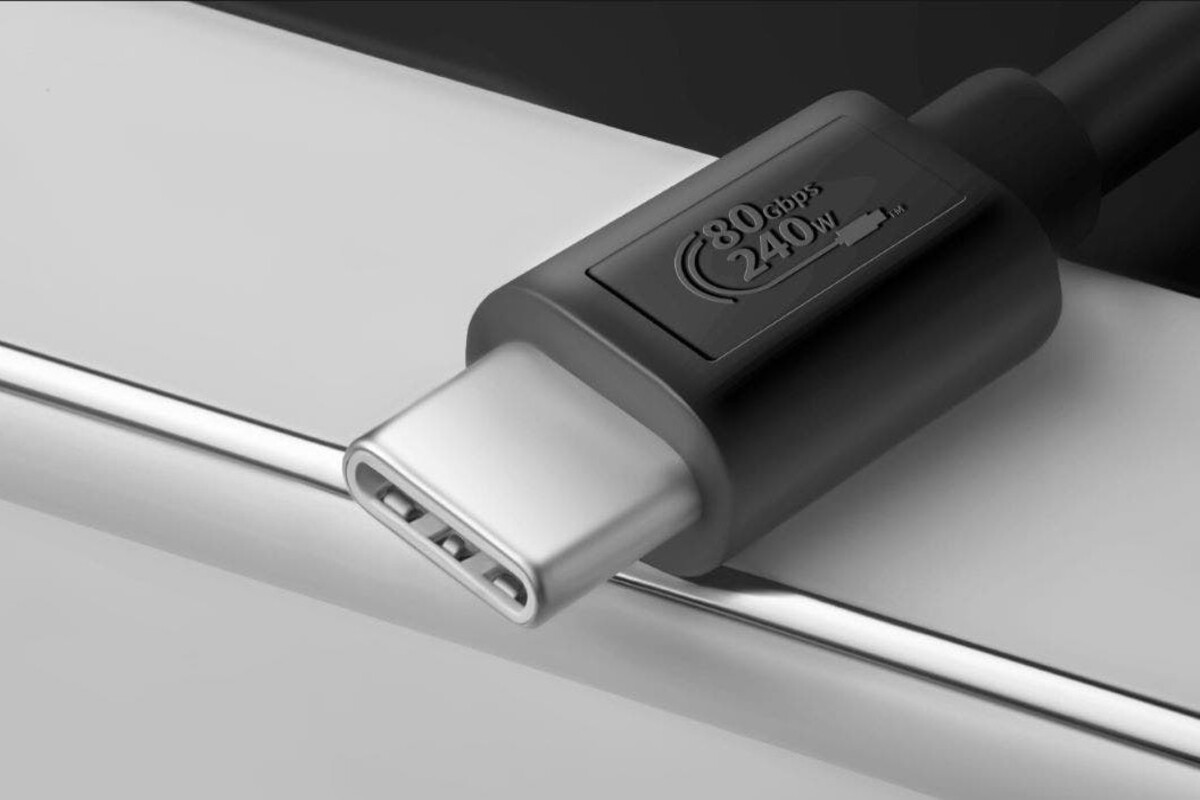
USB4’s headline rate of up to 80Gbps describes the link’s maximum signaling capacity, not the speed of your files. Real throughput depends on the slowest stage in the chain: the host controller, the USB4 tunnel, the storage device’s controller, and the file system workload. If your storage is a SATA SSD behind a USB bridge, the bridge and SSD will cap transfers long before the USB4 link runs out of bandwidth.
For example, a USB4 enclosure that contains a fast NVMe SSD can move large files at high speeds, while the same enclosure with a slower SSD shows much lower results. Even with a fast SSD, small files and mixed read/write patterns can reduce throughput because protocol overhead and device firmware scheduling take over. I once tested a USB-C dock (firmware 1.12, dated 2024-03) where the link negotiated correctly but the attached drive still behaved like a midrange SSD due to the dock’s internal USB-to-NVMe path.
So the question becomes practical: does your storage and its bridge support sustained transfers that can actually reach the USB4 link’s limits. If not, USB4 still helps with latency, device responsiveness, and multi-stream behavior, but it does not magically raise the storage’s ceiling.
Why 80Gbps Often Doesn’t Show Up
People often expect the 80Gbps number to translate directly into file transfer speed, then conclude USB4 “doesn’t work.” The missing piece is that USB4 is a transport layer, while storage performance comes from the SSD’s controller, NAND type, cache size, and thermal behavior. A USB4-to-storage bridge also adds its own buffering and scheduling, which can cap sustained throughput.
Another common misunderstanding is assuming that a cable alone determines performance. USB4 uses different modes and negotiated link parameters, and the host and device must both support the same capabilities. Cable quality matters for signal integrity, but the bigger limiter is usually the storage path. When you see lower speeds, it often reflects the SSD’s sustained write rate, not the USB4 link.
There’s also the “workload mismatch” problem. Large sequential transfers can approach the SSD’s limits, while copying thousands of small files can drop throughput dramatically. File system metadata operations, directory traversal, and per-file open/close overhead can dominate. On Windows, the copy engine and antivirus scanning can add extra delays, and on macOS, Spotlight indexing can start after the copy begins, which changes the observed speed.
Solutions And Advice
Match Storage To Link Speed
Start by identifying the storage type behind the USB4 connection. If the enclosure uses a USB-to-SATA bridge, expect speeds closer to SATA limits (often a few hundred MB/s) regardless of USB4’s 80Gbps headline. If it uses a USB-to-NVMe bridge, check whether it supports NVMe over PCIe tunneling and what PCIe generation and lane width it maps. A fast NVMe SSD can sustain much higher throughput, but only if the enclosure’s bridge and cooling can keep it there.
Practical outcome: with a SATA SSD, you typically won’t see sustained transfer rates that require USB4’s full capacity. With a good NVMe SSD and a capable USB4 enclosure, you can see transfers that are limited by the SSD’s sustained read/write, not by the USB4 link.
Measure With The Right Test
Use a benchmark that stresses sequential and mixed workloads, then compare results across the same SSD connected directly (if possible) and through the USB4 path. On Windows, tools like CrystalDiskMark or similar storage benchmarks can show sequential read/write and small-block performance; on macOS, diskutil and third-party benchmarks can help, though results vary by filesystem. I prefer running at least two passes because some SSDs throttle after a short burst, and the first run can look better than the steady state.
Realistic expectation: even with fast hardware, small-file tests often show lower MB/s than large-file tests. That gap is normal because overhead scales with file count, not with total bytes.
Check Negotiation And Power Modes
USB4 devices negotiate capabilities during connection, and power modes can change behavior. If the enclosure or dock runs in a low-power mode, it may reduce performance to stay within power and thermal budgets. Check for firmware updates for the enclosure or dock, since bridge chips sometimes receive performance and stability fixes. On some systems, you can also inspect negotiated link speed and controller details in device manager or system reports.
Practical outcome: a firmware update can remove stutters or improve sustained throughput, but it rarely turns a SATA bottleneck into NVMe-level performance.
Choose Cables And Enclosures Carefully
Use a USB4-certified cable rated for the required data rate, especially for longer runs. Cable issues show up as link renegotiation, errors, or fallback to lower modes, which you can detect through system logs or device behavior. Then focus on the enclosure’s bridge chipset and cooling design. A thin enclosure with poor heat sinking can throttle an NVMe SSD, making USB4’s bandwidth irrelevant during the throttled period.
Small aside: many “fast” enclosures advertise high peak speeds, but their sustained write performance depends on thermal design and SSD firmware settings, which you only see after a longer copy.
Case Examples
Example 1: SATA SSD In A USB4 Dock
A user buys a USB4 dock expecting near-USB4 transfer rates. The dock’s internal storage path uses a USB-to-SATA bridge, and the attached drive is a SATA SSD. During large file copies, the speed plateaus around the SATA SSD’s sustained limit, while CPU usage and copy overhead remain visible. The user sees the same plateau with different USB4 hosts, which points to the bridge and SATA bottleneck rather than the USB4 link.
What helps: switching to a USB4 enclosure that supports NVMe over PCIe tunneling, and confirming the enclosure’s bridge supports the needed PCIe lanes, changes the bottleneck from SATA to SSD performance.
Example 2: NVMe SSD With Small-File Workloads
A second user connects a fast NVMe SSD through a USB4 enclosure and copies a folder containing many small documents. The measured throughput is far lower than the SSD’s sequential benchmark. The cause is workload shape: per-file overhead, filesystem metadata updates, and background indexing during the copy. When the user repeats the test with a single large file or a compressed archive, throughput rises and tracks the SSD’s sustained sequential performance more closely.
What helps: test both sequential and small-block workloads, and disable or account for indexing and real-time scanning during measurement.
USB4 Vs Storage Bottlenecks
| Scenario | Typical Limiter | What You’ll Observe | What To Do |
|---|---|---|---|
| SATA SSD via USB bridge | SATA + bridge caps | Plateaued MB/s on large files | Use NVMe-capable enclosure |
| NVMe SSD, large sequential copy | SSD sustained rate + thermals | High throughput then possible drop after heat | Check enclosure cooling; rerun longer tests |
| NVMe SSD, many small files | File system + per-file overhead | Lower MB/s despite fast SSD | Test with archives; account for indexing |
| Dock power/firmware limits | Power mode + bridge firmware | Inconsistent speeds or errors | Update firmware; verify negotiated mode |
Common Mistakes
Buying a USB4 cable and assuming it fixes slow transfers is a frequent error. If the enclosure uses a SATA bridge, the cable cannot raise the storage ceiling. Another mistake is judging performance from a single short copy of a few hundred MB, which often measures burst behavior rather than sustained throughput.
People also skip workload differences. A folder full of small files can look “broken” even when the SSD and USB4 link work correctly. Copy tests should include at least one large sequential transfer and one mixed or small-file scenario, because overhead changes the outcome.
Finally, ignoring background activity can lead to misleading conclusions. Antivirus scanning, OS indexing, and cloud sync clients can throttle perceived transfer rates, and the effect varies by OS version and settings. I’ve seen copy speeds swing after a sync client starts uploading the same files, which makes the USB4 link look guilty when it isn’t.
FAQ
Does USB4 80Gbps Increase Copy Speed With Slow SSDs?
USB4’s link rate does not raise the SSD’s sustained read/write limits. If the storage path is capped by SATA or a limited bridge, transfers plateau at that bottleneck even when the USB4 link can carry more data.
Will A USB4 Cable Affect Real-World Throughput?
A good cable helps prevent link errors and renegotiation, but it rarely changes performance when the storage device is the limiter. If you see unstable speeds or disconnects, cable quality and length can matter.
Why Do Small Files Copy Much Slower Than Large Files?
Small files add per-file overhead from the filesystem and the copy process, so throughput drops even when the storage and USB4 link support high sequential rates. Testing with archives or large single files separates overhead from raw bandwidth.
How Can I Tell If My Enclosure Uses NVMe Or SATA?
Check the enclosure’s product specifications for NVMe support and the bridge type, then confirm by running a benchmark and comparing results to known SATA vs NVMe ranges. If the enclosure documentation only mentions SATA, it will not reach NVMe-class speeds.
What Should I Measure To Judge USB4 Performance?
Measure sustained sequential read/write and a small-block or mixed workload, then repeat the test long enough to reveal thermal throttling. Compare results across direct connection (when possible) and through the USB4 path to locate the bottleneck.
Author's Insight
USB4’s 80Gbps figure describes a maximum transport capability, not a guarantee of file transfer speed. In practice, storage bridges, SSD controller behavior, and workload shape dominate results. The most reliable approach is to test sustained performance with both large sequential data and small-file mixes, then compare against the expected limits of the storage type behind the enclosure. When speeds plateau early, the evidence usually points to SATA bridges, limited PCIe tunneling, or thermal/power constraints rather than the USB4 link itself.
Key Takeaways
- USB4 80Gbps sets an upper bound for the link, while storage and bridge design set the real transfer ceiling.
- SATA-backed enclosures cap throughput even when the USB4 link can carry more data.
- Small-file workloads often underperform sequential benchmarks due to filesystem and per-file overhead.
- Measure sustained performance with repeat runs, and account for indexing and antivirus activity during tests.
- Use USB4-certified cables to avoid negotiation issues, then focus on the enclosure’s NVMe support and cooling.