USB4 Cost vs Reality
USB4 targets high performance over USB-C using the same physical connector, but the experience depends on the host controller, the cable, and the device’s firmware. Paying more for “USB4” can make sense when you need one port for fast storage transfers and multi-monitor or high-resolution display output. It can also be a waste when your current workflow uses USB 3.2 speeds and you only need basic charging or a single low-bandwidth display.
USB4 is built on the USB-C connector and uses a tunneling approach that can carry DisplayPort and PCIe-based data, yet many products expose only a subset of those capabilities. A laptop listing that says “USB4” does not automatically mean it supports the highest data rates or the most demanding display modes. I’ve seen shopping pages where the port type is labeled USB4, while the included cable is a basic USB-C cable that never reaches the advertised performance.
To decide whether USB4 is worth paying more for, you need to separate three things: the port’s capability, the cable’s capability, and your actual use case. If you transfer large files to an external SSD or dock often, you may notice the difference. If you mostly charge a phone and use a mouse, the premium rarely shows up.
Main Pain Points Buyers Hit
People often assume “USB4” equals “always faster,” then buy a device based on the label alone. In practice, USB4 performance varies because manufacturers choose different controllers and route different lanes internally. Some ports support high-speed data but limit display output, while others support video but throttle data when multiple functions share bandwidth.
Another common mistake involves mixing USB-C cables and expecting uniform results. USB-C is a connector standard, not a performance guarantee. A cable that works for charging may not support the higher signaling needed for top USB4 throughput, and the device may fall back to a lower mode without warning.
Display support adds another layer of confusion. USB4 can carry DisplayPort signals, but the monitor’s resolution and refresh rate depend on the negotiated link bandwidth. A dock that “works” with a monitor may still cap the refresh rate or color depth, which feels like a software issue when it’s really a bandwidth negotiation issue.
Finally, buyers overlook backward compatibility. USB4 ports can talk to USB 3.x devices, but the speed becomes whatever the connected device supports. If your external SSD is USB 3.2 Gen 2x2, upgrading the laptop to USB4 may not increase transfer speed beyond what the SSD can do.
Solutions And Advice
Check Port Specs Before Buying
Look for the exact port capability in the product manual or spec sheet, not just the marketing label. For USB4, pay attention to whether the port supports USB4 20Gbps mode, Thunderbolt 3/4 compatibility (when stated), and whether the manufacturer lists display output modes. If the documentation mentions “USB4 20Gbps” or “up to 40Gbps,” that narrows the range of what the port can negotiate.
When a listing is vague, search the model number plus “specification” or “user guide PDF” and check the I/O section. I’ve found it helpful to note the manual revision date (for example, “Rev. A00” from 2023) because port behavior sometimes changes across firmware updates, and the manual often reflects that.
Match Cables to the Use Case
For higher speeds, use a USB4-certified cable or a cable explicitly rated for the throughput you need. Many USB-C cables are “USB 2.0/charging only” or “USB 3.x data” without supporting the signaling required for top USB4 modes. If you buy a dock, check whether it includes a cable that matches the dock’s performance claims; some bundles ship with a short cable that limits bandwidth.
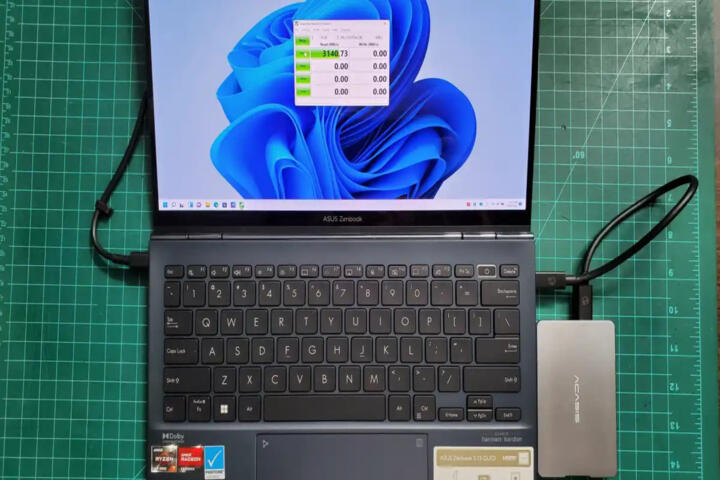
As a practical test, connect your external SSD through the dock or port and run a benchmark once, then compare against the same SSD connected directly to the laptop. If the results drop sharply, the bottleneck is often the cable or the dock’s internal controller, not the SSD.
Plan for Display Bandwidth Limits
If you need monitors, verify the dock’s stated maximum resolution and refresh rate for each connected display. USB4 display tunneling can share bandwidth with data transfers, so a “dual 4K” claim may depend on whether you also copy files at the same time. A dock that supports two displays at 4K/60Hz might still reduce performance when you attach a high-speed storage device.
For a realistic outcome, treat multi-monitor setups as a negotiation problem. If your work requires 4K at high refresh rates, prioritize a dock that lists those exact modes and test with the monitor’s native settings rather than assuming the OS will pick the best link.
Use a Simple Decision Rule
USB4 tends to justify the premium when you combine at least two needs: high-speed external storage and display output from the same port. If you only need one of those, USB 3.2 with a good dock may deliver the same practical result. If your current devices top out at USB 3.2 Gen 2 speeds, USB4 often won’t raise the ceiling.
One mild frustration: many retailers list “USB4” but omit whether the port supports the higher display modes. When that happens, the safest path is to rely on the manufacturer’s I/O table and confirm with a return policy before committing.
Case Examples for Real Decisions
Scenario 1: A buyer edits large video files from a portable SSD and uses a single 1440p monitor. The SSD supports USB 3.2 Gen 2x2, which can already reach high speeds on USB 3.2-capable ports. Upgrading to a USB4 laptop may not increase transfer speed beyond what the SSD can do, but it can reduce cable clutter if the buyer also wants display output through the same port. The buyer checks the laptop manual for “USB4 20Gbps” and buys a USB4-rated cable, then confirms transfer speed with a one-time benchmark.
Scenario 2: A buyer wants a dual-monitor desk setup using a dock. The monitors are 4K/60Hz, and the buyer also copies files to an external drive during meetings. The buyer chooses a dock that lists dual 4K/60Hz support and tests whether refresh rate drops when the external drive is active. If the dock documentation is vague, the buyer avoids paying extra for USB4 hardware and instead selects a USB 3.2 dock with clear display specs, because the bottleneck shows up in the dock’s internal bandwidth sharing.
USB4 vs USB 3.x Checklist
| What You Need | USB4 Premium Helps When | USB 3.x Often Suffices When | What To Verify |
|---|---|---|---|
| External SSD Transfers | You use a USB4-capable SSD or dock and want higher sustained throughput | Your SSD tops out at USB 3.2 Gen 2x2 and you already reach near its limit | Port mode (e.g., 20Gbps), cable rating, dock controller |
| Single Monitor | You want one-cable video + data with fewer adapters | You already get the monitor’s native refresh via USB-C/DP Alt Mode | Monitor mode support and negotiated refresh |
| Dual Monitors | Dock documentation lists your exact resolutions/refresh rates | You accept lower refresh or one display uses a different connection | Dock spec table for each display combination |
| Charging + Peripherals | You need higher data for frequent device transfers | You mainly use keyboards, mice, and charging | Power delivery rating and basic data support |
- Write down your devices’ maximum speeds (SSD model, dock model, monitor models).
- Check the laptop or desktop manual for the port’s USB4 mode and display support.
- Confirm the cable rating for the throughput you want; avoid “works for charging” cables.
- If using a dock, verify the dock’s published display modes for your exact monitor resolutions.
- Test once after purchase with native monitor settings and a repeatable file transfer.
Common Mistakes To Avoid
Buying based on the port label alone causes most disappointments. USB4 branding does not guarantee the same performance across devices, and some products limit bandwidth sharing between video and data.
Another mistake involves assuming a USB-C cable that “fits” will support USB4 speeds. Cable quality matters, and many cables sold for convenience never reach the signaling required for top modes.
People also overestimate what docks can do when multiple high-demand devices connect at once. A dock may support a certain display mode in isolation, then reduce refresh or data throughput when an external SSD is active.
Finally, buyers sometimes ignore firmware and driver notes. If a manufacturer releases a firmware update that changes USB-C/USB4 behavior, the manual or release notes may mention it, and the difference can show up during display negotiation. I’ve seen cases where a dock behaved differently after a BIOS update, and the fix was documented in a short changelog.
FAQ
Does USB4 Always Reach 40Gbps?
No. USB4 devices can negotiate different modes, and many products operate at lower effective throughput due to controller limits, cable capability, and how the device shares bandwidth with display output.
Will USB4 Improve Speeds With USB 3.2 SSDs?
Only if the SSD and connection path can benefit. If the SSD tops out at USB 3.2 Gen 2x2, USB4 may not raise the ceiling, though it can still reduce friction by using one port for both video and data.
Do I Need a Special USB4 Cable?
For higher USB4 performance, yes. Use a cable rated for the throughput you want; many USB-C cables support charging and basic data but not the signaling needed for top USB4 modes.
Can USB4 Replace a Thunderbolt Dock?
Sometimes, but not automatically. USB4 docks vary widely, and display and storage performance depends on the dock’s published specs and internal controller design.
How Can I Confirm Monitor Refresh Rate?
Set the monitor to its native resolution and refresh in the OS display settings, then verify the negotiated mode using the monitor’s on-screen display or the OS’s detailed display information. If refresh drops when you attach storage, the dock likely shares bandwidth.
Author's Insight
USB4 is best treated as a capability framework rather than a single guaranteed speed. Real-world performance hinges on the host controller, the dock or cable, and how video and data share bandwidth during negotiation. Buyers get the most predictable results by checking the manufacturer’s I/O tables and the dock’s published display combinations, then testing with native monitor settings.
When documentation is vague, the safest approach uses a return window and a repeatable test (one SSD model, one cable, one monitor mode). That method catches the common failure modes: under-rated cables, docks that cap refresh rates, and ports that fall back to lower modes.
Key Takeaways
USB4 can justify a higher price when you need high-speed storage and display output through one port, and the product documentation clearly supports your monitor modes. USB4 often adds less value when your devices already cap performance at USB 3.2 levels or when you only need charging and low-bandwidth peripherals.
Verify port modes, use a properly rated cable, and treat docks as the deciding factor for multi-monitor setups. If you cannot find clear specs, test after purchase and avoid assuming the label matches the negotiated performance.