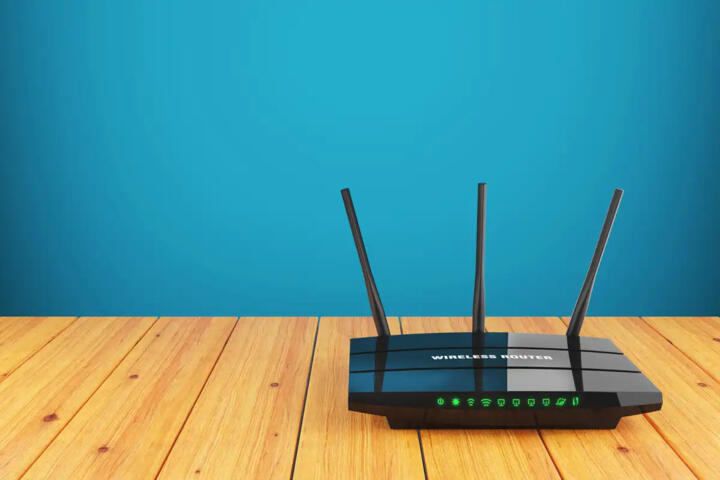
Wi‑Fi Router Basics
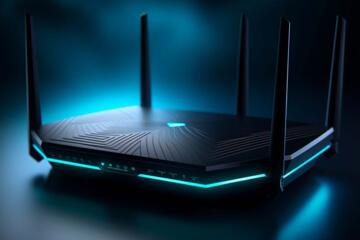
A Wi‑Fi router is the device that turns your internet connection into wireless radio signals for phones, laptops, TVs, and smart home gear. The router’s radios, antennas, and software decide how fast data moves and how consistently devices stay connected. Your internet plan sets a ceiling, but the router decides how close you get to that ceiling in each room.
Start with a simple mapping: internet speed from your ISP, then Wi‑Fi performance in your space. If your plan is 300 Mbps down, a router that can handle high throughput still may deliver less in a bedroom with thick walls. If your plan is 1 Gbps, the router becomes more likely to be the limiting factor, especially when multiple devices stream at once.
For practical shopping, treat Wi‑Fi as two problems: coverage (signal reaching devices) and capacity (how many devices share the air). A router with strong coverage can still feel slow when many clients compete, and a high-capacity router can still fail in a far corner.
Common Selection Mistakes
People often buy based on the box’s “max speed” number, then discover that real throughput drops with distance, walls, and interference. Those headline figures assume ideal conditions and a single client, which rarely matches a home.
Another frequent mistake is ignoring the device mix. A household with many Wi‑Fi 6 phones and laptops benefits from newer features, while a home full of older smart plugs and cameras may not see the same gains. Some devices also prefer 2.4 GHz for range, which means you can’t treat band choice as a minor detail.
Interference matters too, because Wi‑Fi shares spectrum with neighbors, cordless phones, and some Bluetooth-heavy setups. Channel congestion can cause buffering even when the router’s hardware looks capable on paper. The router’s ability to manage channels and bands affects stability, not just peak speed.
Supporting technologies also shape outcomes. Mesh systems extend coverage by adding nodes, but each hop can reduce effective throughput depending on how the mesh backhaul is configured. Wired backhaul usually performs better than wireless backhaul, and many homes can’t support it without running Ethernet.
Finally, placement gets skipped. A router inside a cabinet or behind a TV stand can lose signal quickly. I’ve seen setups where the router was placed on the wrong side of a concrete wall, and the “upgrade” changed nothing except the sticker on the box.
What To Check Before Buying
Match Bands To Your Layout
Decide how you’ll use 2.4 GHz and 5 GHz. 2.4 GHz usually reaches farther and penetrates walls better, but it often has more interference and lower typical speeds. 5 GHz usually delivers higher speeds at shorter range. If your home has long hallways or thick walls, plan for 2.4 GHz to carry devices that tolerate lower speed.
Look for a router that supports Wi‑Fi 5 or Wi‑Fi 6 with dual-band operation, and check whether it offers separate SSIDs or band steering. Separate SSIDs can help you control which devices stay on 2.4 GHz. Band steering can reduce manual work, but it can also misplace a device that would have performed better on a different band.
As a small aside, some routers label features differently across firmware versions; I’ve seen “smart connect” behavior change after an update (for example, firmware 1.x to 2.x on certain models), which can affect how devices roam between bands.
Plan For Capacity And Roaming
Capacity depends on how the router handles multiple clients and how it schedules airtime. Wi‑Fi 6 introduces improvements like OFDMA and better multi-client efficiency, which helps when many devices stream or game at once. Wi‑Fi 6E adds 6 GHz, which can reduce congestion in crowded areas, but only if your clients support 6 GHz.
Roaming behavior matters in multi-room homes. If you use a mesh system, check whether it supports fast roaming standards and whether the nodes use a dedicated backhaul. If you use a single router, roaming is handled by the client device, and you’ll rely on signal strength thresholds that vary by phone and laptop.
Realistic outcome expectations: in a well-placed single-router setup, you might see near-plan speeds on the same floor and a noticeable drop in far rooms. In mesh setups, you can often improve coverage substantially, while throughput per device may drop compared with the main node, especially when the mesh backhaul is wireless.
Verify Ports, Backhaul, And Power
Check the number and type of Ethernet ports if you plan to connect a TV, game console, or a mesh node via wired backhaul. Many routers include 1–2 WAN/LAN Ethernet ports, but the exact count varies widely. If you want wired backhaul, you may need enough LAN ports or a separate switch.
Also check USB ports for storage or media sharing. USB features vary by firmware and can be limited by CPU performance. If you care about local file access, test the router’s advertised feature set against what your use case needs, because “USB sharing” on paper can behave differently in practice.
Power and cooling affect stability. A router in a warm cabinet can throttle performance or trigger intermittent disconnects. I once troubleshot a setup where the router’s logs showed repeated radio resets after hours of heat exposure, and moving it to open air fixed the issue without changing any settings.
Use Real Tests After Setup
After installation, test with a wired device to confirm your internet plan works as expected. Then test over Wi‑Fi at multiple locations: near the router, mid-distance, and the farthest room where you care about performance. Use the same device for comparisons so you don’t mix results from different Wi‑Fi generations.
Tools help you see what’s happening. A phone app that shows Wi‑Fi signal strength and channel usage can reveal congestion patterns, and a laptop speed test can show whether the bottleneck is the router or the internet link. If you see high latency spikes during video calls, the issue may be interference or bufferbloat rather than raw speed.
For troubleshooting, start with placement and channel settings before changing advanced features. Many routers default to automatic channel selection, and manual changes can help in specific crowded neighborhoods, but they can also make things worse if you pick a busy channel.
Case Examples For Real Homes
Apartment With Thick Walls
An anonymized renter had a 500 Mbps internet plan but only reached 80–120 Mbps in the bedroom. The router was placed near the entry door, and the bedroom signal crossed a thick interior wall. The renter switched to a dual-band router with stronger 2.4 GHz performance and moved it to a central location on the same side as the bedroom. After setup, speed in the bedroom improved to around 200 Mbps, while the living room stayed near the plan.
This case shows the role of placement and band behavior. The router’s “max speed” didn’t matter as much as signal reach and interference on 2.4 GHz. The renter also separated SSIDs so older smart devices stayed on 2.4 GHz while laptops used 5 GHz.
House With Many Streaming Devices
An anonymized household used a mesh system because the router’s signal dropped sharply between floors. They had multiple streaming TVs and two gaming consoles, plus phones that moved between rooms. The first mesh attempt used wireless backhaul, and performance in the far node felt inconsistent during peak evening hours. After adding a wired backhaul path between nodes using Ethernet, the far node’s throughput improved and buffering during simultaneous streams reduced.
This scenario highlights capacity and backhaul. Mesh nodes can extend coverage, but the backhaul method strongly affects how much usable bandwidth reaches the far rooms. The household also adjusted device placement so consoles stayed on Ethernet where possible.
Router Checklist And Tradeoffs
| Decision Factor | What To Look For | What It Changes | Common Pitfall |
|---|---|---|---|
| Wi‑Fi Bands | Dual-band (2.4/5) or tri-band (adds 6 GHz) | Range vs speed tradeoff | Assuming one band covers every room |
| Mesh vs Single | Mesh nodes sized to your floors/walls | Coverage consistency | Wireless backhaul used where Ethernet exists |
| Client Compatibility | Wi‑Fi 6/6E support on phones/laptops | Real throughput and efficiency | Buying 6E for devices that can’t use 6 GHz |
| Ethernet Ports | Enough LAN/WAN for wired devices/backhaul | Stability for consoles/TVs | Running out of ports mid-setup |
| Placement | Central, elevated, open area | Signal strength and roaming | Cabinets, metal racks, and behind TVs |
Step-by-step checklist: measure the rooms that matter, note walls and floors, list devices by type (streaming, gaming, smart home), confirm which Wi‑Fi versions those devices support, then choose a router or mesh plan that matches the farthest target location. After purchase, test near and far, then adjust placement and band assignment before changing advanced settings.
Common Mistakes To Avoid
Buying a router with more theoretical speed than your internet plan can deliver wastes money if your main goal is reaching the plan’s speed in far rooms. Peak speed marketing often ignores how throughput changes with distance and interference.
Another mistake is leaving the router in “set and forget” mode when the environment is congested. If your neighborhood has many overlapping networks, automatic channel selection can still land on a crowded channel. A small channel change can help, but it should be guided by observed signal and channel usage rather than guesswork.
People also underestimate how much Ethernet improves reliability. When a game console or TV supports Ethernet, using it reduces Wi‑Fi contention and makes streaming more consistent. If you plan to use mesh, wired backhaul often beats wireless backhaul for sustained throughput.
Finally, don’t ignore security settings. Use WPA3 if your devices support it, or WPA2-AES if they do not. Avoid older security modes that weaken protection, and change the default admin password because many routers ship with predictable credentials.
FAQ
How Many Mbps Does Wi‑Fi Need?
Streaming quality depends on the service and codec, but most households can stream HD on modest Wi‑Fi speeds. The more practical metric is consistent performance at the farthest room, measured with repeated tests during busy hours.
Wi‑Fi 6 Or Wi‑Fi 6E?
Wi‑Fi 6E adds 6 GHz, which can reduce congestion, but only clients that support 6 GHz benefit. If your devices are mostly Wi‑Fi 6 or older, Wi‑Fi 6 performance and placement often matter more than 6E.
Do I Need A Mesh System?
Mesh helps when a single router can’t cover multiple floors or rooms with acceptable signal strength. If you can place the router centrally and use Ethernet for key devices, a single router can still work well.
What Is Channel Width?
Channel width affects how much spectrum the router uses for each transmission. Wider channels can raise peak speeds but can also increase interference sensitivity, so the best choice depends on local congestion.
Should I Use Separate SSIDs?
Separate SSIDs can make device placement predictable, especially for older smart home devices that prefer 2.4 GHz. If you prefer one network name, band steering can work, but test roaming behavior in rooms where signal is weaker.
Author's Insight
Router selection becomes easier when you treat Wi‑Fi as a coverage-and-capacity system rather than a single speed number. Placement, band choice, and backhaul method often explain more performance variation than the router’s marketing specs. After setup, repeated tests at multiple locations during typical usage reveal whether the bottleneck is the router, the internet link, or interference.
For evidence-based decisions, compare Wi‑Fi versions supported by your devices, check whether mesh nodes can use wired backhaul, and verify security settings like WPA2-AES or WPA3. If a router’s firmware changes roaming behavior, your results may shift after updates, so keep notes on what you tested before and after.
Key Takeaways
Match router features to your home layout: 2.4 GHz for range, 5 GHz for speed, and 6 GHz only when clients support it. Choose mesh only when coverage needs exceed a single router’s placement limits, and prefer wired backhaul when possible. Test near and far after setup, then adjust placement and band assignment before chasing advanced settings. Treat “max speed” as a ceiling under ideal conditions, not a promise for your rooms.