Wi-Fi And Ethernet Basics
Wi‑Fi sends data over radio waves using 2.4 GHz, 5 GHz, or 6 GHz bands, while Ethernet sends data over copper or fiber cables using standardized physical layers. Wi‑Fi shares the air with other devices, so congestion and interference can raise latency and packet loss. Ethernet uses a dedicated link per port, so it typically delivers more consistent latency and fewer retransmissions.
Ethernet ports commonly run at 1 Gbps, and many home routers still offer 100 Mbps on older WAN or LAN ports. Wi‑Fi speeds depend on channel width and modulation, so a “600 Mbps” label often reflects a theoretical maximum under ideal conditions. A measurable difference shows up as jitter: the variation in packet timing, which matters for real-time audio and video.
Latency is not the same.
In practice, a Wi‑Fi connection can look fast in a speed test yet still drop packets during a call because the radio link quality fluctuates. Ethernet usually avoids those fluctuations because the signal path does not depend on air quality. Wireless also adds overhead from medium access control, so the same application can feel less stable even when average throughput looks similar.
Common Misunderstandings
People often treat Wi‑Fi as a single “speed,” but it behaves like a shared radio link with changing signal-to-noise ratio. Walls, furniture, and even human bodies can attenuate 2.4 GHz and 5 GHz signals, and the effect depends on building materials. In apartment buildings, neighboring networks can overlap channels, which increases contention.
Another misunderstanding: assuming a stronger signal always means better performance. A device can connect at a higher link rate while still experiencing higher retransmissions due to interference, which shows up as jitter. That jitter can be more disruptive than a modest drop in average throughput.
Packet loss changes the experience.
Some users also ignore bufferbloat, where queues in the router or modem grow under load and add delay. Wi‑Fi can worsen this because retransmissions and contention already add variability. Ethernet can still suffer from bufferbloat, but the path is usually more predictable.
Choosing The Right Connection
Match Use Case To Stability
Choose Ethernet for tasks that tolerate little delay variation, such as stable video calls, large file transfers, or continuous device telemetry. Ethernet’s dedicated link reduces contention, which typically lowers jitter and packet loss. In practice, a wired connection often keeps a consistent round-trip time during peak household usage.
Wi‑Fi fits when wiring is impractical, such as in rooms far from the router or for temporary setups. Use 5 GHz for shorter distances and 2.4 GHz when range matters more than speed. If your device supports 6 GHz, it can reduce interference in supported regions, though coverage is shorter.
Place The Router Intentionally
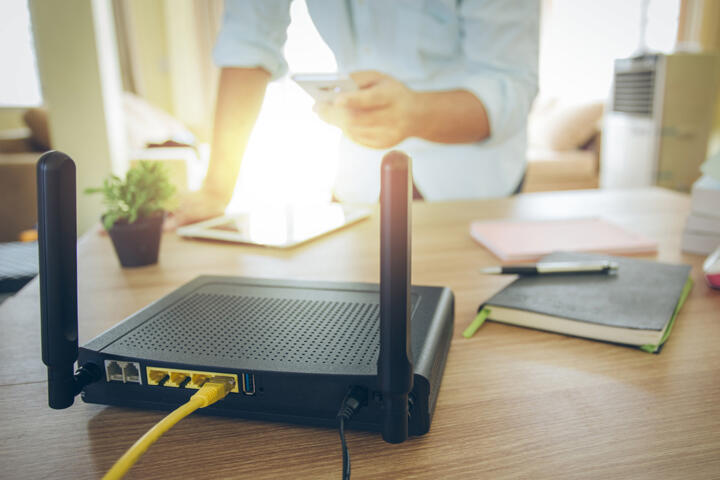
For Wi‑Fi, placement changes signal quality more than many settings. Put the router higher and closer to the center of use, and avoid placing it behind a TV cabinet or inside a closed media stand. Keep it away from microwave ovens and thick metal objects, since these can raise noise floor and cause retransmissions.
In one common home layout, moving a router from the floor to a shelf can reduce dropouts because the line-of-sight improves. I’ve seen setups where a small change in angle—rotating the antennas toward the client—reduced call stutters, which suggests directional coverage patterns. Firmware version numbers matter too; for example, some vendors changed band steering behavior in specific releases, and that can affect roaming between access points.
Move it, then retest.
Use The Right Wi-Fi Band
Pick the band based on distance and interference. 5 GHz usually offers higher throughput and lower interference, but it attenuates faster through walls. 2.4 GHz travels farther and penetrates walls better, but it overlaps more often with Bluetooth and neighboring Wi‑Fi networks.
When you test, watch not only download speed but also packet loss and jitter. Many operating systems show packet loss during ping tests, and some router dashboards show retransmission counters. If you see loss spikes during movement around the home, the radio link is unstable.
Measure jitter, not vibes.
Prefer Wired For Critical Devices
For devices that must stay connected for long periods, connect them via Ethernet when possible. Examples include desktop computers used for video calls, network-attached storage, and smart home hubs that handle frequent events. A wired link also reduces the chance that a firmware update or channel change triggers a temporary disconnect.
If you cannot run a full cable, consider a managed switch near the router and short patch cables to nearby rooms. Powerline adapters can work in some homes, but performance depends on electrical wiring quality and can vary by circuit. I’ve seen powerline links that were stable at 50–80 Mbps on one breaker and dropped to under 10 Mbps on another, which makes outcomes unpredictable.
Wired reduces moving parts.
Control Router Congestion
Congestion management affects both Wi‑Fi and Ethernet. If your router supports bufferbloat mitigation features such as SQM (Smart Queue Management) or similar traffic shaping, enable them according to the vendor’s guidance. Without shaping, a single large download can inflate latency for other devices.
Set Quality of Service carefully. Many “gaming” or “priority” modes rely on heuristics that can misclassify traffic, and they can worsen performance for some applications. If you use QoS, verify results with repeated tests after changes, because the effect depends on your router model and firmware.
QoS can misclassify traffic.
Plan For Roaming And Coverage
In larger homes, multiple access points reduce dead zones, but roaming behavior matters. If clients roam poorly, they can stick to a weak access point and then suffer packet loss. Some systems use band steering or roaming assistance, and behavior varies by vendor and client device.
Use a wired backhaul between access points when possible. Wireless backhaul adds another radio hop, which increases latency and reduces throughput for all clients. If you must use wireless backhaul, place access points so the backhaul link stays strong, which often means line-of-sight or minimal wall penetration.
Backhaul quality sets the ceiling.
Educational Case Examples
Telehealth In A Two-Story Home
A caregiver sets up a laptop for video visits on the second floor. Wi‑Fi works for browsing but the call freezes during the evening when other family members stream video. After switching the laptop to Ethernet using a cable run along the hallway, the call becomes stable because jitter drops and packet loss decreases.
The caregiver then tests Wi‑Fi again after moving the router to a higher shelf and changing the Wi‑Fi channel plan. The second-floor signal improves, but the call still stutters during peak usage, which suggests contention and retransmissions remain. The caregiver keeps Ethernet for the laptop and uses Wi‑Fi for phones, which reduces the number of real-time streams competing for airtime.
One change fixed the symptom.
Smart Device Uploads In A Clinic
A small clinic uses networked devices that upload readings to a server. Staff report that uploads sometimes fail after a busy morning, and the device logs show repeated reconnect attempts. The clinic measures Wi‑Fi performance near the device location and finds high retransmission rates and intermittent packet loss.
They move the device to an Ethernet port on the same switch as the server. Uploads become consistent because the device maintains a stable link and avoids Wi‑Fi roaming events. The clinic keeps Wi‑Fi for staff tablets, since those devices move around and Ethernet would be impractical.
Logs beat guesswork.
Ethernet Vs Wi-Fi Checklist
| Decision Factor | Ethernet Tends To | Wi‑Fi Tends To | What To Check |
|---|---|---|---|
| Latency stability | Lower jitter | Higher jitter under interference | Ping to router for 60–120s |
| Packet loss | Usually minimal | Can spike with congestion | Ping loss during peak use |
| Throughput | Predictable per link | Varies with distance and band | Speed test plus jitter check |
| Mobility | Limited by cable | Supports movement | Roaming behavior across rooms |
| Setup effort | Cable planning needed | Placement and channel tuning | Router position and channel plan |
Pick based on your bottleneck.
- List the applications that must stay stable (video calls, real-time audio, continuous uploads).
- Run a 60–120 second ping test on the device in its usual location.
- If jitter or packet loss spikes, switch that device to Ethernet or improve Wi‑Fi placement and band selection.
- If Wi‑Fi remains unstable, reduce competing traffic or add wired backhaul access points.
- Re-test after each change so you can attribute improvements to a specific action.
Common Mistakes
One frequent mistake: relying on a single speed test result. Speed tests often use short transfers and can miss jitter, which affects interactive sessions. If you only look at Mbps, you can keep a connection that still drops packets during calls.
Another mistake: using the wrong cable category for Ethernet runs. Many homes use older cabling; a cable rated below what your equipment expects can limit link speed or cause errors. If you see frequent link renegotiations, check cable condition and termination quality.
Skip the “it’s connected” assumption.
People also misconfigure Wi‑Fi channels. Auto channel selection can work, but in dense areas it can hop channels and disrupt clients. Manual channel selection can help, yet the best choice depends on local interference, which you can estimate with a Wi‑Fi analyzer tool.
Some users enable band steering and then wonder why a device behaves oddly. Band steering can move clients between 2.4 GHz and 5 GHz based on signal thresholds, and those thresholds may not match the device’s real performance. If a device is sensitive, you may need to separate SSIDs or adjust steering settings.
Roaming bugs are real.
Finally, some people ignore security settings. Weak Wi‑Fi security can lead to unauthorized access, which increases congestion and can degrade performance. Use WPA2-AES or WPA3 where supported, and keep router firmware updated, since security fixes and performance fixes sometimes arrive together.
FAQ
Does Ethernet Always Beat Wi‑Fi?
Ethernet usually delivers lower jitter and fewer packet-loss spikes because it uses a dedicated physical link. Wi‑Fi can match Ethernet for some tasks when signal quality stays high and the network stays uncongested, but it depends on distance, interference, and client behavior.
What Numbers Should I Measure?
Track latency, jitter, and packet loss during the same time window you use the service. A 60–120 second ping test to your router often reveals instability that a short speed test misses.
Can Wi‑Fi Cause Audio Or Video Issues?
Yes. Packet loss and jitter can cause buffering, dropped frames, or audio gaps in real-time streams, even when average throughput looks adequate.
Is 2.4 GHz Better Than 5 GHz?
2.4 GHz often reaches farther through walls, while 5 GHz usually supports higher throughput at shorter distances. The better choice depends on your room layout and local interference from neighboring networks.
Do Mesh Systems Change The Answer?
Mesh systems can improve coverage, but roaming and backhaul quality determine stability. Wired backhaul typically reduces latency and improves consistency compared with wireless backhaul.
Author's Insight
Ethernet and Wi‑Fi differ less in “speed” and more in how they handle variability: contention on radio links versus a dedicated cable path. When people report freezing or delayed responses, jitter and packet loss usually explain the behavior better than Mbps alone. I focus on testable signals—ping loss, jitter, and repeatability—because those map to how real-time apps behave. If you need stable connectivity for health-related devices, treat network reliability as part of the setup, not an afterthought.
Key Points
Use Ethernet for devices that need consistent latency and minimal packet loss, especially for real-time video calls and continuous uploads. Use Wi‑Fi when wiring is impractical, then tune placement, band choice, and channel settings, and test during the same hours you use the service.
Next steps: run a 60–120 second ping test from the device in its usual location, then repeat after one change. If you see packet loss spikes or jitter, switch to Ethernet for that device or improve Wi‑Fi coverage with better placement or wired backhaul access points.