USB-C Cable Speeds Explained
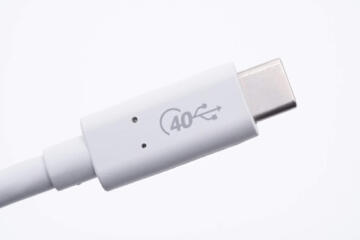
USB-C cable ratings like 20Gbps, 40Gbps, and 80Gbps refer to the maximum signaling capability the cable is designed to carry. Those numbers map to different generations of USB data and, in many cases, different expectations for how much bandwidth the cable can support for high-speed data and DisplayPort video tunneling. A cable rating alone does not guarantee your device will reach that speed, because the limiting factor can be the host port, the sink device, the USB mode, or even the cable length.
In everyday terms, a 20Gbps cable is often marketed for high-speed USB data and basic video use cases, while 40Gbps and 80Gbps ratings target higher throughput scenarios such as faster external storage links and higher-resolution video streams over USB-C. The “80Gbps” label is commonly associated with USB4 2.0-class signaling, but the exact behavior still depends on whether both ends negotiate the same protocol and lane configuration. I’ve seen shoppers buy an “80Gbps” cable for a laptop that only supports a lower USB mode, then wonder why nothing changes—because negotiation happens after plug-in, not at checkout.
One practical example: if you connect an external SSD enclosure to a USB-C port, the enclosure may support high-speed transfers, but the laptop port might cap the link at a lower USB generation. Another example: a monitor that expects DisplayPort Alt Mode may work over USB-C with a cable that supports the needed high-speed lanes, yet still fail if the cable’s wiring or the monitor’s firmware expects a different mode.
What People Get Wrong
Many buyers treat the “Gbps” number as a guaranteed transfer speed for files. That assumption breaks down because USB throughput depends on protocol overhead, storage controller behavior, and how the devices schedule reads and writes. A cable rated for 40Gbps can still deliver far less than 40Gbps of real file transfer, since USB uses packet framing, error correction, and sometimes encryption or tunneling overhead.
Another common mistake is assuming the cable rating matches the port’s capabilities. USB-C is a connector shape, not a guarantee of USB version, lane count, or video support. A phone, laptop, dock, and monitor can all use USB-C while supporting different subsets of USB data, charging profiles, and display modes. If the host port only supports a lower mode, the cable cannot “upgrade” it.
People also get tripped up by the difference between “data rate” and “video support.” Some cables are marketed with high bandwidth numbers but do not reliably carry the specific signaling needed for DisplayPort Alt Mode or USB-C video tunneling at the resolution and refresh rate you want. Cable construction matters: shielding, impedance control, and how the high-speed pairs are routed affect whether the link stays stable at higher speeds, especially at longer lengths.
Finally, there’s the marketing layer. Some listings mention “USB4” or “Thunderbolt” without stating the actual cable test profile or the USB-IF compliance status. The USB-IF has a certification program for certain cable categories, and the most trustworthy listings reference compliance rather than only a headline number. I once checked a product page in late 2024 and found the “80Gbps” claim, but no mention of the USB-IF test category; that’s a red flag when you need predictable behavior with docks.
How To Choose The Right Cable
Match Cable Rating To Use
Start with your target use case: external storage transfers, high-resolution monitor output, or charging. For external SSDs, higher ratings can help when you have a USB4-capable host and an enclosure that supports high-speed tunneling, but the real-world gain depends on the SSD controller and the negotiated link. For video, confirm the monitor’s supported modes (DisplayPort Alt Mode vs USB-C video tunneling) and the required resolution/refresh rate.
If you only need charging and basic data (keyboard, mouse, occasional phone sync), a lower-rated cable often works fine. If you need stable high-speed video plus data through a dock, a higher-rated cable reduces the chance of link retraining at higher bandwidth. Still, the dock’s internal design and the laptop’s port capabilities remain the bottleneck when they cap lane usage.
Verify Ports, Not Just Cables
Check the device specs for the port type and supported standards. Many laptops list whether a USB-C port supports USB4, Thunderbolt, or DisplayPort over USB-C. If a device only supports USB 3.2 Gen 2 (10Gbps) or USB 3.2 Gen 1 (5Gbps), an 80Gbps cable cannot raise that ceiling. On the other hand, if both ends support USB4 2.0-class behavior, a higher-rated cable can help the link negotiate at the higher bandwidth profile.
For docks, pay attention to the dock’s stated maximum display support and whether it uses a single upstream link or multiple internal paths. Docks sometimes downshift display bandwidth when multiple monitors are connected, which can make a “fast cable” look like it failed. A quick test is to connect the monitor directly to the laptop port, then compare behavior with the dock.
Use Practical Tests And Tools
After purchase, test with a known-good workload. For storage, use a benchmark or a large file copy and compare results across cables, keeping the same enclosure and port. For video, verify resolution and refresh rate in the operating system’s display settings, then watch for flicker or link dropouts during window movement or video playback.
On Windows, tools like USBView (from Microsoft’s Windows SDK ecosystem) can show negotiated USB properties, though it may not expose every detail of USB4 tunneling. On macOS, system reports can show link characteristics for some devices, but not all cable-level details. I’ve found that even without perfect visibility, repeated stability checks—same cable, same port, same monitor—often reveal whether the cable is truly supporting the intended mode.
Respect Length And Quality
Higher bandwidth signaling is more sensitive to cable length and construction. A short, well-shielded cable often performs better at 40Gbps or 80Gbps than a longer cable with the same headline rating. If your setup needs a longer run, consider whether you can shorten the path or use a certified active cable designed for longer distances.
Also check whether the cable is described as passive or active. Active cables can help maintain signal integrity over distance, but they still require compatible negotiation and stable power delivery. If a cable is “80Gbps” but marketed without any mention of active/passive behavior, shielding, or certification, treat it as a gamble for high-bandwidth video and fast storage.
Educational Case Examples
SSD Enclosure On A USB-C Laptop
A person connects a USB-C external SSD enclosure to a laptop port labeled “USB4.” The enclosure supports high-speed transfers, but the laptop’s USB4 implementation negotiates a lower lane mode when the cable is long. With a shorter 40Gbps-rated cable, file copy throughput rises noticeably; with an 80Gbps-rated cable, throughput improves only slightly because the laptop port still caps the negotiated mode. The lesson: the cable rating matters, but the negotiated link profile and port limits matter more.
Dock To Dual Monitors
A person uses a USB-C dock to run two monitors at high resolution. With a 20Gbps cable, one monitor drops to a lower refresh rate or fails to maintain a stable link. Switching to a 40Gbps-rated cable restores the intended refresh rate, yet the second monitor still runs at a reduced mode because the dock’s internal bandwidth allocation limits simultaneous display streams. The lesson: cable bandwidth can affect stability, but dock design and display mode negotiation decide the final outcome.
Comparison Table And Checklist
| Parameter | 20Gbps | 40Gbps | 80Gbps |
|---|---|---|---|
| Typical target | High-speed USB data and common video use | Higher-throughput USB4-class links | USB4 2.0-class bandwidth scenarios |
| Guaranteed real speed | No; depends on devices and protocol overhead | No; depends on negotiated lane mode | No; depends on both ends supporting the same profile |
| Video reliability | Often adequate for moderate modes | Better odds for demanding resolutions/refresh | Helps when devices negotiate high-bandwidth video |
| Length sensitivity | Lower than higher-bandwidth cables | Moderate; longer runs may retrain | Higher; passive cables may struggle at length |
| Best for | Charging plus everyday data | Fast SSDs and single high-res displays | USB4 2.0-capable setups and demanding docks |
Decision checklist
- Write down your host port label from the device manual (USB4, Thunderbolt, DisplayPort Alt Mode, or USB 3.x).
- Check the sink device spec (SSD enclosure or monitor) for supported USB-C video and data modes.
- Choose a cable rating that matches the highest mode you expect both ends to negotiate.
- Prefer shorter lengths for 40Gbps/80Gbps use, or choose an active cable when distance is unavoidable.
- After connecting, verify negotiated behavior: display settings for video, and repeatable throughput for storage.
Common Mistakes To Avoid
Buying a cable based only on the highest “Gbps” number leads to disappointment when the port supports a lower USB mode. A cable can be capable and still be irrelevant if the host never negotiates the higher profile. This shows up as “no improvement” even after switching cables.
Another mistake is ignoring charging behavior. Some cables are rated for high data but may not support the charging power profile you need for your laptop or tablet. USB-C charging uses negotiated power delivery profiles, so a cable that works for data might still limit charging current if it lacks the right wiring or certification.
People also skip stability checks. High-bandwidth links can appear to work at first, then drop refresh rate or retrain when the system loads the link with video and data at the same time. Testing with the monitor connected and a background file transfer running can reveal issues that a quick plug-in test misses.
Finally, treat “80Gbps” listings without any certification or test category language as uncertain for demanding setups. Cable marketing often compresses multiple claims into one number, and the only reliable path is to match the cable to the negotiated capabilities of both devices. If the listing lacks enough detail, it’s reasonable to choose a different product with clearer compliance information.
FAQ
Does A 20Gbps Cable Limit USB Transfers?
It can, if your devices negotiate a mode that requires more than 20Gbps signaling. If your host and device only negotiate a lower USB generation, the 20Gbps rating usually stays above the negotiated requirement.
Will An 80Gbps Cable Make My Dock Faster?
Only when the dock and your laptop both support the higher USB4 profile and lane configuration. If the dock internally caps bandwidth or the laptop port negotiates lower lanes, the cable rating does not raise those limits.
Do Cable Ratings Affect Charging?
Charging depends on USB Power Delivery negotiation and cable wiring for the needed current. A high “Gbps” rating does not automatically guarantee high-watt charging support.
Why Does My Monitor Drop Refresh Rate?
Refresh rate can drop when the negotiated video mode cannot be sustained at the required bandwidth, often due to cable length, dock bandwidth allocation, or a mismatch between DisplayPort Alt Mode and the cable’s supported signaling.
How Can I Confirm What Mode Is Negotiated?
Use device and OS display settings for video mode, and run repeatable storage tests for data. Some platforms expose USB link details via system tools, but not every cable-level parameter is visible.
Author's Insight
USB-C cable ratings describe signaling capability, not a guaranteed end-to-end speed. Real performance depends on negotiation between host and device, the USB mode in use, and how much bandwidth the system allocates to data and video simultaneously. Cable length and construction affect whether high-bandwidth signaling stays stable, which explains many “it works but not reliably” reports.
When choosing between 20Gbps, 40Gbps, and 80Gbps, the most reliable approach is to match the cable rating to the highest mode both ends can negotiate, then verify behavior with a practical test. If your devices only support a lower USB generation, a higher-rated cable rarely changes outcomes.
Key Takeaways
- Gbps ratings describe maximum signaling capability; they do not guarantee real file transfer speed.
- Port and device negotiation decide the ceiling, so a higher-rated cable cannot override a lower-capability host.
- Video performance depends on the negotiated display mode and bandwidth allocation, not only the cable headline number.
- Length and cable construction matter more at 40Gbps and 80Gbps, especially with docks and dual-monitor setups.
- Verify results after purchase using display settings and repeatable storage tests.