SSD Vs HDD Basics
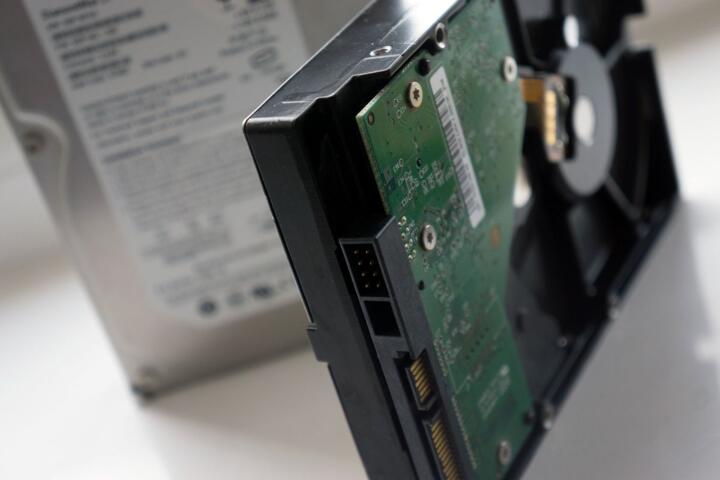
SSD (solid-state drive) stores data in flash memory chips, while HDD (hard disk drive) stores data on spinning magnetic platters with a moving read/write head. That mechanical difference drives most user-visible behavior: HDDs depend on seek time and rotational latency, while SSDs rely on flash access and controller scheduling. Typical SATA SSDs often reach around 500–550 MB/s sequential reads, while common 7200 RPM HDDs land closer to 150–250 MB/s sequential reads, though real workloads vary. SSDs also tend to have much lower access latency, which shows up as faster app launches and quicker system responsiveness after power-on.
HDDs still matter.
In practice, the “difference” shows up in three places. First, random I/O: SSDs handle many small reads/writes with less delay, which benefits OS paging, database-like workloads, and large software libraries. Second, sustained transfers: HDDs can keep throughput steadier for large sequential files, while SSDs may slow when their flash is saturated or when the workload triggers garbage collection. Third, physical behavior: HDDs produce audible noise and are more sensitive to shock because the head assembly moves over spinning media.
SSD controllers manage wear.
Pain Points And Myths
People often compare SSD and HDD using only “speed” and then get surprised by mixed results. Sequential benchmarks can make an HDD look closer than it feels, because many daily tasks involve random reads, small metadata lookups, and frequent filesystem operations. Another common mistake is assuming that an SSD always stays fast under heavy writes; some SSDs slow down after sustained write workloads if they lack sufficient free space or if the controller’s caching and garbage collection can’t keep up.
Noise and shock matter.
There’s also a misconception about reliability. Drive failure rates depend on model, workload, temperature, firmware, and how the drive is used, so generic “SSD lasts longer” claims rarely hold across all scenarios. HDDs can fail abruptly due to mechanical events, while SSDs can fail in ways tied to flash wear and controller behavior; both can lead to sudden data loss, so backups remain the deciding factor. If you rely on a single drive for irreplaceable data, the storage type does not change that risk.
Latency shapes the feel.
Biologically, storage type does not change human physiology, but it changes the timing of device responsiveness that affects user behavior. Faster storage reduces the time your system spends waiting on I/O, which can reduce perceived lag when opening apps, searching files, or resuming from sleep. That timing can matter for accessibility workflows, where repeated short waits add up. The dependency chain also matters: SSD performance depends on the interface (SATA vs NVMe), the CPU’s ability to feed I/O, and the filesystem and drivers.
Tips And Practical Advice
Match Interface To Device
Check whether your system supports SATA SSDs or NVMe SSDs before buying. SATA SSDs use the older SATA link and typically cap at the SATA bandwidth, while NVMe SSDs use PCIe lanes and can reach much higher throughput and lower latency. In practice, a SATA SSD upgrade in a desktop from a 7200 RPM HDD often feels dramatically faster even if the spec sheet looks modest. If your device only has SATA, an NVMe drive will not fit or will not work without the right slot and BIOS support.
Verify the slot.
Use Free Space And TRIM
SSD performance depends on flash management, so keep some free space. Many SSD vendors recommend leaving roughly 10–20% of the drive unused for best sustained behavior, though the exact number varies by model and firmware. TRIM helps the OS tell the SSD which blocks are no longer in use, which reduces write amplification during future operations. On Windows, you can confirm TRIM status; on Linux, you can check mount options and filesystem support.
TRIM reduces waste.
Plan For Workload Patterns
Choose based on your dominant I/O pattern. If you run large apps, compile code, edit photos, or use a system that swaps frequently, SSD random performance usually dominates the experience. If you store large sequential media files and rarely rewrite them, HDDs can deliver acceptable performance per dollar. For mixed workloads, a common approach is pairing: SSD for OS and active projects, HDD for bulk storage.
Workload beats marketing.
Consider Endurance And Write Needs
For heavy write workloads like video ingest, continuous logging, or databases, look at the drive’s endurance rating and warranty terms. SSDs list TBW (terabytes written) or DWPD (drive writes per day) for some models, but those numbers assume specific conditions and may not match your exact workload. HDDs handle large sequential writes well, but they still face mechanical wear and seek overhead when writes are scattered. If you generate many small writes, SSDs usually cope better, though you still want enough free space and a drive designed for that workload.
Check the warranty.
Case Examples
Home Office Upgrade
An anonymized user with a SATA HDD in a desktop replaced it with a SATA SSD and kept the HDD for bulk documents. After the change, the system booted faster and app launches felt quicker, especially for browser tabs and office software that read many small files. Large folder copies improved less than expected because the destination HDD remained the bottleneck. The user also noticed that leaving the SSD nearly full reduced performance during repeated installs, which matched the general behavior of flash management.
SSD felt snappier.
Media Library With Mixed Needs
An anonymized user stored a large photo and video library on an HDD and used an SSD for editing projects. When importing footage, the SSD reduced the time spent waiting for small reads, while exporting long videos relied more on CPU/GPU and sequential throughput. The HDD remained useful for capacity, and the user avoided frequent rewrites to reduce mechanical wear. The setup worked best after the user scheduled backups and kept the SSD’s free space above a practical threshold.
Capacity stayed affordable.
Comparison Table
| Parameter | SSD | HDD | What To Choose |
|---|---|---|---|
| Access latency | Low | Higher (seek + rotation) | SSD for responsiveness |
| Sequential throughput | Often higher (SATA/NVMe dependent) | Moderate, varies by RPM | Depends on interface and models |
| Random I/O | Usually strong | Limited by mechanics | SSD for OS and apps |
| Sustained writes | May slow without free space | Can stay steady for sequential | Match to your write pattern |
| Noise | No moving platters | Audible spin/seek | SSD for quiet setups |
| Shock sensitivity | Generally better | Higher risk during motion | SSD for laptops and travel |
| Failure behavior | Can be sudden; wear-related over time | Can be sudden; mechanical faults | Backups for both |
Checklist for a purchase decision:
- Confirm your interface: SATA vs NVMe, and whether your device supports the needed form factor.
- Estimate your workload: random app launches, small file edits, or mostly large sequential media transfers.
- Plan capacity: leave free space on SSDs to reduce performance drops during sustained writes.
- Check thermals: NVMe SSDs may need a heatsink in desktops or throttling-aware behavior in laptops.
- Budget for backups: choose a backup method that you can restore from, not just a copy that sits unused.
Then buy the right fit.
Common Mistakes
Buying an SSD without checking the system interface leads to wasted money and delays, especially when a device supports only SATA or only a specific M.2 key type. Another mistake is cloning a failing HDD and assuming the SSD will “fix” errors; cloning can copy bad sectors or filesystem corruption, and the new drive may inherit the problem. Some users also ignore SSD free-space behavior and fill the drive until it becomes slow during installs and updates, which can look like “the SSD is defective” when it is actually flash management.
Cloning can copy problems.
FAQ
Do SSDs Fail More Often?
Failure rates vary by model, workload, and temperature. Both SSDs and HDDs can fail suddenly, so backups matter more than the drive type.
Will An HDD Slow Down A PC?
An HDD often slows OS responsiveness because seek and rotational latency increase delays for random reads. The impact depends on how much your workload relies on small file access.
Is NVMe Always Faster Than SATA?
NVMe usually offers lower latency and higher throughput than SATA, but the real difference depends on the SSD model, controller, and the device’s PCIe generation and lane configuration.
Should I Leave Space On SSDs?
Keeping some free space helps SSD controllers manage flash wear and garbage collection. Many drives perform better with roughly 10–20% free space, though exact guidance varies.
Can I Mix SSD And HDD?
Yes. A common setup uses an SSD for the OS and active apps, while an HDD stores bulk files. This reduces random I/O pressure on the HDD.
Author's Insight
SSD vs HDD comparisons become clearer when you separate access latency from sequential throughput and then map each to your actual tasks. In many everyday workflows, random reads and filesystem metadata dominate the “feel,” which is why SSD upgrades often feel dramatic even when copy speeds do not match the headline numbers. Flash wear management and thermal throttling explain many “my SSD got slower” reports, and those issues respond to free-space habits and device cooling. For both technologies, the most reliable lesson is that backups and restore testing matter more than the drive label.
Measure, then trust.
Key Takeaways
SSD storage reduces wait time for random reads and usually improves boot and app responsiveness. HDD storage can still be cost-effective for large sequential media and bulk capacity, but it adds mechanical latency and noise. Choose based on interface support, workload pattern, and thermal behavior, then plan backups because both drive types can fail abruptly. If you rely on the data for work or health-related records, treat storage as one layer and keep a tested recovery plan, and seek professional IT support if you need help migrating systems safely.
Back up before you migrate.