Passkeys Without Passwords
Passkeys authenticate by proving possession of a private cryptographic key, not by sending a password to a website or app. The public part of that key is registered with the service when you create the passkey, so the service can later verify a signed response. During login, your device generates a fresh challenge response tied to the specific site and session, which prevents replay of an earlier login. This design also reduces the value of stolen credentials because there is no reusable password string to phish.
In practice, you tap a prompt on your phone or use a fingerprint reader on a laptop, and the device performs the cryptographic steps locally. The service receives a signed assertion plus metadata that lets it verify the signature against the stored public key. If the signature checks out and the assertion matches the relying party’s identity, the login succeeds. The password never leaves your device because the protocol does not require a password field at all.
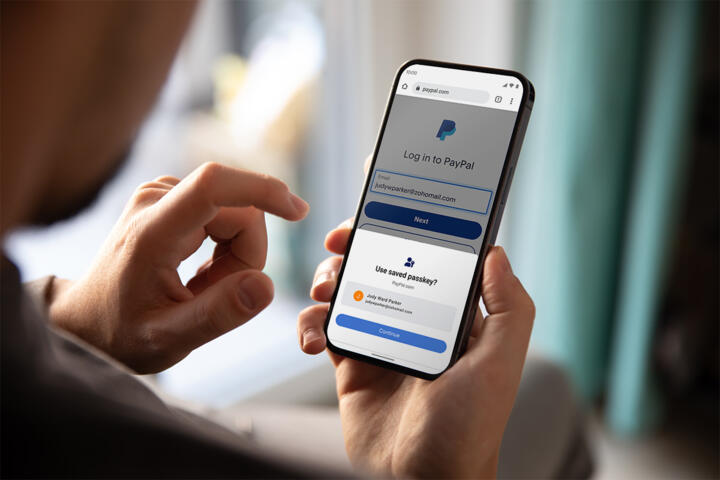
Passkeys are commonly implemented using WebAuthn and the FIDO2 family of standards. A passkey is the user-facing name for a credential that can be stored on an authenticator (like a phone secure element) and used via platform or roaming authenticators. When you see “Use passkey” in a browser, the browser coordinates the protocol with your authenticator and the server, then hands the server the signed proof.
What People Get Wrong
Many people assume passkeys “send something secret” over the network, then conclude they must be safer only because the secret is harder to read. The safer mechanism is that the secret never needs to be transmitted as a reusable credential. The server verifies a signature created for a particular login attempt, so an attacker who captures network traffic cannot reuse it later.
Another common misunderstanding involves account recovery. If you lose the device that holds the passkey, you do not automatically lose access to the account, but recovery depends on how the service set up backup options. Some platforms sync passkeys across devices through account-linked key storage, while others require a second authenticator or recovery codes. The protocol supports multiple credentials per account, yet the user experience depends on the relying party’s policies.
People also underestimate dependencies. Passkeys rely on browser support, operating system support, and authenticator support, and those pieces must agree on the credential format. A passkey created on one platform can still work elsewhere, but only if the authenticator and browser can speak the same WebAuthn flows. When a site uses passkeys inconsistently across subdomains or apps, users may see prompts that look like failures even though the underlying keys are fine.
There is also a practical limitation: passkeys do not remove the need for secure account management. If an attacker gains access to your synced device storage or your account recovery channel, they may be able to create or use credentials. The security model shifts from “protect the password” to “protect the authenticator and the account recovery path,” which is a different set of risks.
How To Use Them Safely
Confirm The Relying Party
Before you approve a login prompt, check that the prompt matches the site or app you intended. Passkey authentication binds the assertion to the relying party identity, so a signature for one service should not validate at another. Still, user habits matter: if a prompt appears from a lookalike domain, you can refuse it. On a phone, I often see the domain name and an account label in the prompt UI; that detail is easy to miss when you tap quickly.
When you create a passkey, prefer the option that names the account clearly and avoids ambiguous labels. If a service offers multiple passkeys for the same account, keep a short record of which device or authenticator created each one. That record helps during recovery, especially when you switch phones or reinstall a browser. A small note in a password manager or secure notes app can save time later, even though the passkey itself is not stored there.
Use Multiple Authenticators
Set up at least two passkeys or authenticators when the service supports it. A common pattern is one platform authenticator on your phone and one on a laptop, plus an optional roaming key. The goal is to avoid a single point of failure when a device breaks, gets wiped, or loses biometric access. Some services let you add a second passkey without removing the first, which keeps your recovery path intact.
If you use a roaming security key, store it separately from your daily carry. I’ve seen people keep the key in the same bag as their laptop, then lose both in one incident. A second location reduces that risk without changing the cryptographic model. For timing, plan to add the second authenticator within the first week after enabling passkeys, when you still have easy access to the original device.
Plan Recovery Before You Need It
Review the service’s recovery options while you still can log in. Look for backup codes, linked email or phone verification, and the ability to add a new passkey after signing in. Some services require a password for recovery even after passkeys are enabled, which changes the threat model. If your account uses email-based recovery, protect that email account with its own passkeys or strong multi-factor authentication.
Test recovery steps in a low-stakes way. For example, remove biometric access on a test device or sign out of a browser profile, then verify that you can still complete login using another authenticator. I once followed a vendor guide dated 2024-03-15 for a browser setting and discovered the “passkey auto-select” toggle behaved differently than expected; the lesson was to verify the flow rather than trust assumptions.
Understand What Gets Verified
During login, the server sends a challenge, and your authenticator signs it using the private key. The signature is verified against the stored public key, and the server checks that the assertion targets the correct origin and relying party. This is why passkeys do not require the server to receive your secret. The protocol also includes counters or other mechanisms to help detect certain replay or cloning attempts, though the exact behavior varies by authenticator.
Be cautious with “passkey sharing” features. Some platforms allow device-to-device syncing of credentials, which can be convenient but also expands the set of devices that can access your passkeys. If you share a family device, confirm whether passkeys are stored per user profile or shared at the device level. A shared profile can turn a convenience feature into an access-control problem.
Educational Case Examples
Scenario 1: Phishing attempt against a passkey account. A user receives a message that looks like a bank login page and tries to enter credentials. The fake site asks for a passkey prompt, but the relying party identity does not match the real bank’s domain. The user declines the prompt, then logs in through the real site. Because the attacker never receives a password string and cannot reuse a captured signature for a different origin, the passkey flow blocks the usual credential theft path.
Scenario 2: Lost phone after passkey setup. A user enables passkeys on a phone and a laptop. The phone is lost, and the user cannot unlock it. The user uses the laptop passkey to sign in, then adds a new passkey on a replacement phone using the service’s “add new device” flow. The account remains accessible because the service supports multiple credentials and the recovery path is tied to an existing authenticator, not only to the lost device.
Passkey Checklist And Tradeoffs
| Decision Point | Passkeys Help When... | Passkeys Can Still Fail When... | What To Do |
|---|---|---|---|
| Phishing risk | The relying party identity is checked and the attacker cannot reuse a captured signature. | The user approves prompts from a lookalike site or the account recovery channel is compromised. | Verify the site/app name in the prompt and protect recovery email/phone. |
| Device loss | You have another authenticator already registered. | You enabled passkeys on only one device and recovery requires that device. | Add a second passkey and review recovery options before you need them. |
| Cross-device use | The browser and OS support the same WebAuthn flows. | A specific app or embedded browser lacks support, or the relying party configuration differs. | Test passkey login in the exact apps you use, not just the main website. |
| Shared devices | Passkeys are stored per user profile with separate authentication prompts. | Passkeys are accessible to other profiles or users on the same device. | Use separate OS profiles and confirm passkey storage behavior. |
Step-by-step checklist:
- Enable passkeys on the service while you still have access to your current login method.
- Add a second authenticator (another device or a roaming key) before removing passwords.
- Confirm recovery options: backup codes, linked email/phone, and the ability to add new credentials after signing in.
- Test login from the devices you actually use, including the browser and app versions you rely on.
- During login, verify the site/app identity shown in the prompt and refuse unexpected prompts.
Common Mistakes
People often enable passkeys on only one device, then discover recovery requires that device. This mistake shows up after phone loss, OS reinstall, or a biometric failure that blocks the authenticator. The fix is to register a second credential while the first device is still available.
Another mistake involves assuming “no password sent” means “no data sent.” Passkey authentication still transmits protocol messages such as the signed assertion and metadata needed for verification. That traffic can be logged by servers and intermediaries, so you should treat it as normal network data, not as a guarantee of anonymity.
Users also skip checking which account recovery channel protects the passkey account. If your recovery email uses weak authentication, an attacker can reset the account and register their own passkey. A mild frustration here: many services focus on passkey login but leave recovery email security to the user, which creates a gap.
Finally, people sometimes remove passwords too early. Some services keep a password as a fallback for recovery or for legacy clients. If you delete the password before confirming recovery behavior, you may lock yourself out. Keep the fallback method until you complete a recovery test.
FAQ
Do passkeys ever send passwords?
No. Passkey authentication uses a signed cryptographic assertion based on a private key stored in an authenticator, so the protocol does not require a password string to be transmitted.
What does the server receive during login?
The server receives a signed response (assertion) plus information needed to verify it against the stored public key and to confirm the relying party identity and session context.
Can a stolen passkey be reused elsewhere?
A captured authentication response should not validate at a different relying party because verification checks the origin and relying party identity. Reuse also depends on the protocol’s anti-replay properties and the authenticator’s behavior.
What happens if I lose my device?
Access depends on the service’s recovery options and whether you registered multiple credentials. Many setups let you sign in with another authenticator, then add a new passkey on a replacement device.
Why do passkeys sometimes fail to log in?
Failures often come from browser or app support gaps, relying party configuration differences, or authenticator issues like biometric lockouts. Checking the exact device and browser version helps narrow the cause.
Author's Insight
Passkeys work without sending passwords because the authentication proof is a signature created by a private key that stays inside an authenticator. WebAuthn and FIDO2 define how the server verifies that signature against a public key registered earlier. The security model shifts from “protect a shared secret string” to “protect the authenticator and the account recovery path.” That shift means users should treat recovery email, linked accounts, and backup authenticators as part of the passkey system, not as an afterthought.
Key Takeaways
- Passkeys authenticate with cryptographic signatures, not password strings.
- Login proofs are tied to the relying party identity, which blocks common replay and phishing patterns.
- Device loss and recovery planning matter as much as the login flow.
- Register at least two authenticators and test login in the exact apps and browsers you use.