Server To Screen Basics
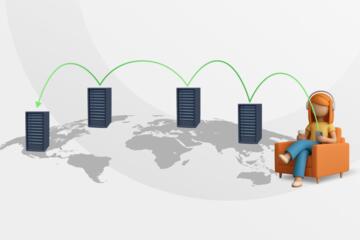
Video streaming starts with a file that gets broken into smaller pieces, then delivered over the internet in a way your TV can decode in real time. A typical workflow uses a content provider’s origin servers, a content delivery network (CDN), and a player on your TV that requests the right pieces as conditions change.
Most modern services use adaptive bitrate streaming, which means the TV switches between multiple quality levels during playback. Each level uses a specific combination of codec settings and bitrate, so the player can pick a lower bitrate when bandwidth drops and move back up when the connection stabilizes. You can see this behavior when the picture briefly softens after a network hiccup, then sharpens again once throughput recovers.
Compression matters because it determines how many bits are needed per second. Common codecs include H.264/AVC and H.265/HEVC, and newer services may also use AV1. The codec choice affects CPU/GPU decoding load on your TV, which can show up as stutter even when bandwidth looks fine.
Pain Points And Myths
People often blame “the internet” when the real issue sits one layer deeper. A TV can buffer because the network path is congested, because Wi‑Fi signal quality is poor, because the TV struggles to decode a codec, or because DRM handshakes fail and the player refuses to start.
Another frequent misunderstanding is that higher advertised speed guarantees smoother playback. Streaming quality depends on sustained throughput, not just a one-time speed test. Buffering can happen when the connection dips below the bitrate needed for the current segment, even if the average speed later looks acceptable.
Supporting technologies create dependencies that are easy to overlook. CDNs route requests to nearby edge servers, but routing changes can still occur when networks reconfigure. DNS resolution, TLS encryption, and congestion control all affect timing. On the home side, Wi‑Fi roaming between access points can interrupt flows, and some routers prioritize certain traffic types in ways that feel random.
DRM adds another dependency. Services use DRM systems such as Widevine, PlayReady, or FairPlay to protect content. If the TV’s license renewal fails, playback may stop after a period of time, even though the network is otherwise working.
How To Diagnose And Fix
Check Playback Quality Signals
Start by observing what the TV player reports. Many apps show a quality label (for example, “Auto,” “1080p,” or a bitrate estimate). If the player repeatedly drops to a lower level during normal use, the problem usually involves sustained bandwidth, Wi‑Fi stability, or packet loss.
Use a practical test: play a title for 2–5 minutes while you watch for quality changes and buffering events. If the app shows “Auto” and quality oscillates, you can try forcing a lower fixed quality (when the app supports it) to confirm that the network can handle that bitrate. This is a diagnostic step, not a permanent setting, because it trades detail for stability.
On the home network, check whether other devices saturate the link at the same time. A laptop uploading backups or a phone syncing large photos can reduce available throughput and trigger adaptive downshifts. I’ve seen this happen with a router that reports a strong signal but still suffers from airtime contention—signal strength and real throughput do not always match.
Improve Wi‑Fi Reliability
Wi‑Fi issues often show up as buffering with no obvious drop in speed test results. Signal quality depends on interference, channel congestion, and how the TV negotiates with the access point. If your TV supports Ethernet, the simplest reliability upgrade is a wired connection; it removes roaming and reduces wireless contention.
If Ethernet is not possible, place the access point so the TV has a clear path and avoid stacking the router behind a TV cabinet. Change the Wi‑Fi band: 5 GHz often performs better for streaming than 2.4 GHz, while 2.4 GHz can travel farther but may be slower and more interference-prone. If your router supports separate SSIDs for 2.4 and 5 GHz, selecting the 5 GHz network can reduce roaming surprises.
Some routers also support Wi‑Fi “smart connect” that moves devices between bands automatically. That can be convenient, but it can also cause brief interruptions during band changes, which the player experiences as a stall. I’ve had better results turning smart connect off and choosing a single band for the TV, version numbers matter here because router firmware behavior changes—one common example is differences between firmware releases around 2023–2024.
Verify Codec And Device Limits
Even with good bandwidth, playback can fail if the TV cannot decode the stream efficiently. A TV may support H.264 well but struggle with HEVC at certain profiles, or it may handle AV1 only on newer models. When decoding lags, the player may buffer to catch up, which looks like a network problem.
To test this, compare two titles with different encoding. If one title plays smoothly and another buffers on the same network, codec and encoding differences are a likely factor. Some apps expose technical details in settings; if not, you can infer it by checking the service’s help pages or by observing whether the “quality” indicator changes in a way that correlates with buffering.
Restarting the app and the TV can clear stuck decoder states. If the issue persists, updating the TV’s OS and the streaming app can help because media frameworks and DRM components get patched over time. I usually treat this as a second step after network checks, because software updates rarely fix a weak Wi‑Fi signal.
Case Examples
Apartment Wi‑Fi With Buffering
A tenant streams a 4K show on a smart TV. The TV shows “Auto” quality and the picture drops to a lower level every few minutes, then recovers. A speed test on the phone near the TV reports strong download numbers, but the tenant’s router logs show frequent channel changes and high utilization during evening hours.
The fix starts with Ethernet for the TV. After switching to wired, buffering stops and the quality indicator stays higher. The tenant then reverts to Wi‑Fi and changes to a dedicated 5 GHz SSID, which reduces roaming interruptions. The lesson: sustained throughput and airtime stability matter more than a single speed test snapshot.
Decoding Limits On An Older TV
A household streams two different titles on the same service. One plays smoothly at 1080p, while the other buffers even when the network is stable and the quality indicator stays at the same level. The TV model is older and supports H.264 reliably but has limited HEVC/AV1 support.
The household tests by lowering the playback quality when the app offers it. Buffering reduces but does not vanish, suggesting the TV’s decode pipeline struggles with the specific encoding. Updating the TV OS and the streaming app improves stability slightly, but the most consistent playback comes from choosing titles encoded in a codec the TV handles well.
Checklist For Troubleshooting
| Symptom | Likely Cause | What To Check | Most Direct Fix |
|---|---|---|---|
| Buffering every few minutes | Sustained throughput drops or Wi‑Fi airtime contention | Quality indicator changes; router load; other devices uploading | Use Ethernet or move TV to 5 GHz; reduce concurrent uploads |
| Plays then stops | DRM license renewal or time/certificate issues | TV clock; error messages; DNS filtering/VPN | Set correct time; disable VPN/DNS filters; update TV firmware |
| Only certain titles buffer | Codec/encoding mismatch with TV decoding support | Compare two titles; check app quality behavior | Update app/OS; lower quality; choose titles encoded for your device |
| Blurry picture without buffering | Adaptive bitrate downshift or display scaling | Quality label; TV picture mode; resolution settings | Improve network stability; set TV to correct HDMI/input mode |
Mistakes That Waste Time
One mistake is restarting the router repeatedly without changing anything else. That can temporarily clear congestion, but it does not fix a persistent Wi‑Fi interference pattern or a codec limitation. A better approach is to change one variable at a time and observe whether the symptom changes in a predictable direction.
Another mistake is trusting a single speed test result. Speed tests often measure download under ideal conditions, while streaming depends on sustained throughput, packet loss, and jitter over the full session. If you test, run it near the TV and repeat it at the same time of day you stream.
People also misread “Auto” quality. Auto can switch representations based on buffer health, not just bandwidth. If you see quality drops, you need to determine whether the network is unstable or whether the TV is decoding slowly.
Finally, some users disable security features to “fix” playback. DRM and secure playback rely on certificate and license flows, and overly aggressive DNS filtering can break those flows. If you use custom DNS or parental controls, test with them turned off temporarily to confirm the cause.
FAQ
How does adaptive bitrate work?
The player requests media segments at different quality levels and switches between them during playback based on measured download speed and buffer health.
Why does buffering happen even with high internet speed?
Streaming needs stable throughput and low packet loss over time; Wi‑Fi interference, router congestion, or device decoding limits can cause stalls despite a high one-time speed test.
What role do CDNs play in streaming?
CDNs place cached copies of content on edge servers closer to you, reducing latency and improving the chance that segment downloads complete before the player’s buffer runs low.
Can DRM errors stop playback after it starts?
Yes. DRM license renewal can fail due to incorrect device time, blocked license endpoints, or network routing changes, which can stop playback mid-session.
Does Ethernet always fix streaming issues?
Ethernet often improves stability by removing Wi‑Fi airtime contention and roaming, but it won’t fix codec incompatibility or DRM/session problems.
Author's Insight
Video streaming reliability comes from multiple interacting layers: encoding and codec support, adaptive bitrate logic, CDN routing, and home network behavior. When troubleshooting, the most informative signals are the player’s quality changes, the timing of buffering events, and whether failures correlate with specific titles. DRM adds a separate failure mode that often shows up as playback stopping rather than gradual quality loss. If you treat the problem as a single “internet speed” issue, you miss common causes like Wi‑Fi airtime contention or device decoding limits.
Key Takeaways
- Adaptive bitrate switches quality based on buffer health, so quality oscillation often points to unstable sustained throughput.
- Wi‑Fi signal strength does not guarantee stable streaming; Ethernet or 5 GHz with reduced roaming usually improves consistency.
- Codec support can cause buffering on specific titles even when the network looks fine.
- DRM failures often stop playback after it starts; check TV time settings and any DNS/VPN filtering.
- Change one variable at a time and use the player’s quality/buffering behavior as your main evidence.