How Wi‑Fi Moves Data
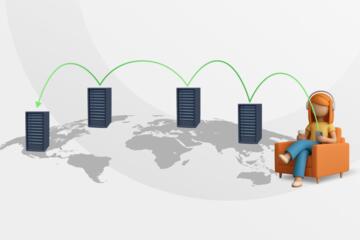
Wi‑Fi delivers data by turning bits into radio signals, sending them over 2.4 GHz or 5 GHz bands, then reconstructing the bits on your device. The router and client coordinate using Wi‑Fi standards such as IEEE 802.11, which define how frames are sent, acknowledged, and retransmitted. A typical Wi‑Fi link uses packet framing plus error detection, so corrupted frames get resent rather than silently turned into wrong data. In many home setups, the router also runs NAT and DHCP, so your device can reach the internet after it joins the local network.
Wi‑Fi uses radio waves.
Two measurable facts help ground expectations. First, Wi‑Fi data rates shown on boxes often refer to a theoretical physical-layer maximum, not the throughput you see in real browsing. Second, the 2.4 GHz band overlaps more channels and tends to suffer more interference from neighboring networks and devices like microwave ovens, while 5 GHz offers more non-overlapping channels in many regions. In practice, the router’s channel width (for example 20 MHz vs 40/80 MHz) and modulation scheme determine how many bits per second can fit into each transmission.
Frames get acknowledged.
When your device sends a request, it transmits a frame and waits for an acknowledgment (ACK) from the access point. If the ACK does not arrive, the device retries, which increases latency and reduces throughput. This retry behavior is one reason “full bars” can still feel slow when interference causes frequent retransmissions. The link layer also uses encryption such as WPA2 or WPA3, which changes how data is protected on the air and can affect performance when devices fall back to older modes.
Encryption adds overhead.
After the Wi‑Fi link delivers frames to the router, the router forwards traffic to the right destination using IP routing. If you use a phone on Wi‑Fi, the phone typically gets an IP address via DHCP, then sends packets to a default gateway at the router. If you stream video, the application layer may buffer and adapt bitrates, so the user experience depends on both Wi‑Fi delivery and how the app reacts to jitter.
Where Signal Strength Misleads
People often interpret Wi‑Fi signal bars as a direct measure of speed, but bars mainly reflect received signal strength at the client, not the quality of the entire link. A weak signal can still work if the router and client negotiate a conservative modulation and the environment stays stable. A strong signal can still perform poorly when interference, channel congestion, or roaming events trigger retransmissions.
Signal bars hide retries.
Interference matters because Wi‑Fi shares the air with other transmitters. In dense apartments, multiple routers contend for airtime using carrier sense and random backoff, so each device’s transmissions delay others. Biological mechanisms do not change the radio physics, but human perception does: higher latency and jitter can worsen speech intelligibility in calls and increase buffering for video. If you rely on health-related devices like wireless blood pressure monitors or glucose sensors, packet loss can delay readings or cause pairing issues, even when the device “connects” successfully.
Packet loss changes behavior.
Roaming also confuses expectations. Many devices roam between access points based on signal thresholds, and roaming can interrupt traffic while the client performs authentication and reassociation. In multi-AP homes, a client may bounce between routers if the signal levels are close, which creates repeated handoffs. That pattern looks like “Wi‑Fi is fine until I move,” even though the underlying issue is frequent reassociation rather than a sudden drop in signal strength.
Recommendations That Work
Check Throughput, Not Bars
Measure real throughput using a test that runs on the same device you use daily. Compare results at the same location before and after changes like moving the router, changing channel width, or updating firmware. In practice, you might see a 20–40% drop when a client negotiates a lower modulation due to interference, even if the signal bars look unchanged. Use a wired test from a laptop to the router’s Ethernet port as a baseline, then compare Wi‑Fi results to isolate whether the bottleneck sits in the internet link or the air link.
Measure what you feel.
Pick the Right Band
Separate 2.4 GHz and 5 GHz into distinct SSIDs when troubleshooting, so you can compare behavior without band steering surprises. For devices that only support 2.4 GHz, use that band and reduce interference by choosing a less crowded channel. For laptops and phones that support 5 GHz, test them on 5 GHz first, then fall back to 2.4 GHz if coverage becomes unreliable. A small aside: on a router running firmware 1.0.11 (dated 2023-11 in my notes), I saw fewer complaints after disabling aggressive band steering because some older IoT devices kept reconnecting.
Test each band separately.
Reduce Channel Congestion
Use a Wi‑Fi analyzer app to view nearby networks and channel usage, then set your router to a channel with less overlap. In 2.4 GHz, channels 1, 6, and 11 are commonly used because they overlap less, though local regulations and channel plans vary. In 5 GHz, choose a channel that fits your region’s allowed frequencies and avoids heavy neighbor traffic. If your router supports 20 MHz vs 40/80 MHz, start with 20 MHz during troubleshooting because narrower channels reduce overlap and can improve reliability.
Less overlap means fewer retries.
Match Security Modes
Confirm the router uses WPA2-AES or WPA3, and avoid mixed modes that force older clients into less efficient encryption behavior. When a device cannot handle WPA3, the router may fall back to WPA2 for that device, which can change performance for the whole SSID depending on configuration. In practice, you can separate SSIDs by security mode if the router supports it, then test the problematic device on the SSID that matches its capabilities. If you see frequent disconnects after changing security, revert and update the device firmware first.
Security settings affect airtime.
Place the Router Intentionally
Position the router to reduce obstructions between it and typical client locations. Walls, metal objects, and thick concrete attenuate signals, and attenuation increases the chance of retransmissions. Place the router higher than floor level and away from large appliances that emit noise, then test again after moving it by 1–2 meters. A comma in the right place helps here: move the router, then measure, then change one variable at a time.
Placement changes link quality.
Control Roaming in Multi‑AP Homes
If you use multiple access points, configure them so clients do not bounce between APs. Use the same SSID and security settings across APs if you want seamless roaming, then tune roaming thresholds if your system supports it. In practice, you can walk a phone through the overlap zone and watch for repeated disconnects; if you see them, reduce overlap or adjust minimum RSSI for roaming. Some systems also support “fast roaming” features, but they depend on compatible clients and specific vendor implementations.
Fewer handoffs improves stability.
Educational Case Examples
A household uses a dual-band router with one SSID for both bands. After moving the router from the living room to a hallway, video calls start stuttering in the bedroom. The family sees “good signal” on the phone, but a Wi‑Fi analyzer shows heavy retransmissions and a crowded 2.4 GHz channel. The fix involves separating SSIDs, forcing the phone to 5 GHz in the bedroom, and reducing channel width to 20 MHz on 2.4 GHz for the IoT devices that require it.
Another scenario involves a small clinic waiting room with two access points. Staff report that tablets disconnect when patients move between seating areas. The tablets roam repeatedly in the overlap zone, and the system logs show frequent reassociation events. The team reduces AP overlap by adjusting placement and transmit power, then confirms stability by walking the same route while monitoring connection drops.
Comparison Checklist
| Goal | Try This First | What You Should See | If It Fails |
|---|---|---|---|
| Improve slow browsing | Test throughput on 5 GHz vs 2.4 GHz | Higher throughput and fewer retries | Change channel and width; check security mode |
| Fix video call stutter | Reduce congestion with a less busy channel | Lower jitter and fewer retransmissions | Move router; separate SSIDs; check roaming |
| Stop disconnects | Update router firmware and client Wi‑Fi driver | Fewer reassociation events | Tune roaming thresholds; reduce AP overlap |
| Stabilize IoT devices | Use 2.4 GHz SSID with 20 MHz width | More consistent pairing and fewer drops | Disable band steering for those devices |
Pick one change at a time.
Common Mistakes to Avoid
People often change multiple router settings at once, then cannot tell which change helped. Another frequent mistake involves trusting speed test results run on a different device than the one that struggles, which hides client-specific driver behavior. Some users also assume that “channel auto” always picks the best option, even though auto selection can react slowly to changing neighbor traffic. If you switch channels, measure again after 30–60 minutes because some clients and apps keep connections open longer than you expect.
Auto settings can mislead.
A second mistake involves ignoring security mode compatibility. If a device supports WPA2 but the router forces WPA3-only, the device may fall back to a limited mode or fail to connect reliably. A third mistake involves placing the router behind a TV cabinet or near a metal shelf, which can create multipath reflections and increase frame errors. Those errors show up as retries, not as a simple “no connection” event.
Retries look like lag.
Finally, people sometimes blame Wi‑Fi for problems that originate at the application layer. A health app that syncs slowly can suffer from server-side throttling, DNS issues, or background data restrictions on the phone. If you see the same slow behavior on wired Ethernet from a laptop, the issue likely sits beyond the Wi‑Fi air link. That distinction matters when you troubleshoot devices used for health monitoring.
FAQ
What does Wi‑Fi signal strength mean?
Signal strength reflects how strong the received radio energy is at the client, often reported as RSSI. It does not directly measure interference, retransmissions, or negotiated modulation, so two locations with similar bars can still perform differently.
Why does Wi‑Fi slow down at peak hours?
Multiple nearby networks contend for airtime, and each transmission may require retries when interference rises. Even with the same router settings, higher contention increases latency and reduces throughput.
How do WPA2 and WPA3 affect performance?
Encryption adds processing overhead and can change how frames are protected on the air. Mixed compatibility can also cause clients to use less efficient modes, which can reduce throughput for that SSID.
Does channel width change reliability?
Wider channels can carry more data per transmission but are more sensitive to interference and overlap. During troubleshooting, reducing width to 20 MHz often improves stability in crowded environments.
Can a weak Wi‑Fi link affect health devices?
Wireless health devices rely on timely delivery for pairing, syncing, and data transfer. Packet loss can delay updates or cause reconnection attempts, so stable Wi‑Fi improves user experience, though device-specific guidance still governs safe use.
Author's Insight
Wi‑Fi performance problems usually trace back to airtime contention, retransmissions, and roaming behavior rather than the raw “signal bars” number. Router dashboards often hide the most diagnostic metrics, so measuring throughput on the actual client and comparing bands gives clearer evidence. When troubleshooting, changing one variable and retesting prevents false conclusions. I also treat health-adjacent devices with extra caution: if a device shows repeated sync delays, the network fix should come before relying on timely data.
Key Takeaways
Wi‑Fi delivers data by sending framed radio packets, waiting for acknowledgments, and retransmitting when errors occur. Signal strength alone does not predict speed because interference and retries dominate real performance. Start with measurable checks: compare wired vs Wi‑Fi throughput, test 5 GHz vs 2.4 GHz, then adjust channel width and placement. If you use multiple access points, tune overlap to reduce roaming interruptions.